
How to Upload Design
Follow these simple steps to share your creative work with our community.
How to Upload Design Posts on Indiater
Uploading your UI designs on Indiater is quick and simple. Designers can share website layouts, mobile app screens, dashboard UI, landing pages, Figma components, and creative digital experiences with the global design community.
This guide explains how to upload and publish your design posts on Indiater step by step.
What Can You Upload on Indiater?
Designers can upload and share:
- Website UI designs
- Landing page layouts
- Dashboard interfaces
- Mobile app screens
- Web app designs
- Figma components
- SaaS product UI
- Creative UI concepts
- Design systems
- UI inspiration posts
Indiater helps designers showcase their work, gain visibility, and inspire other creators.
How to Upload a Design Post on Indiater
Follow these simple steps to publish your design.
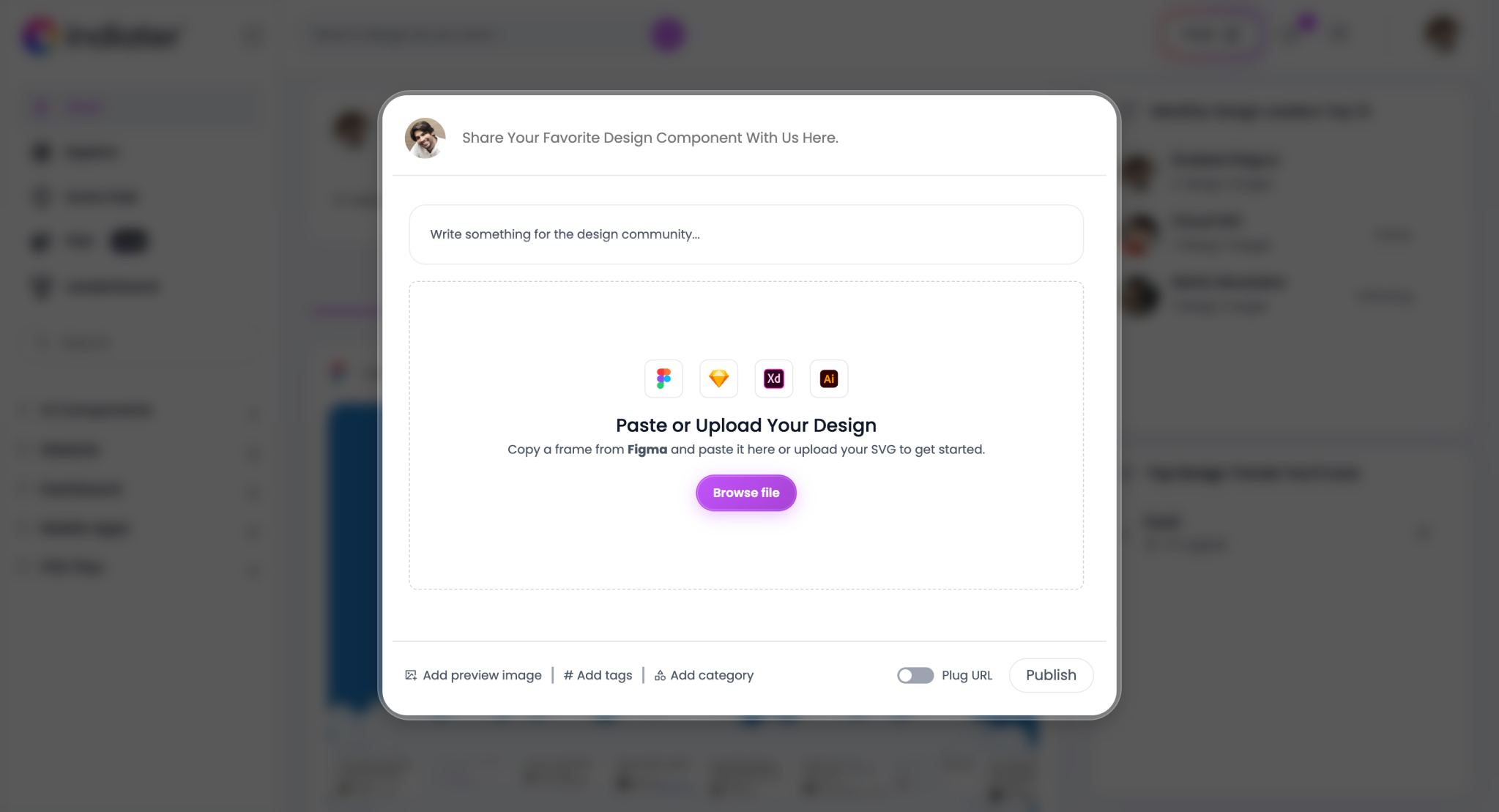
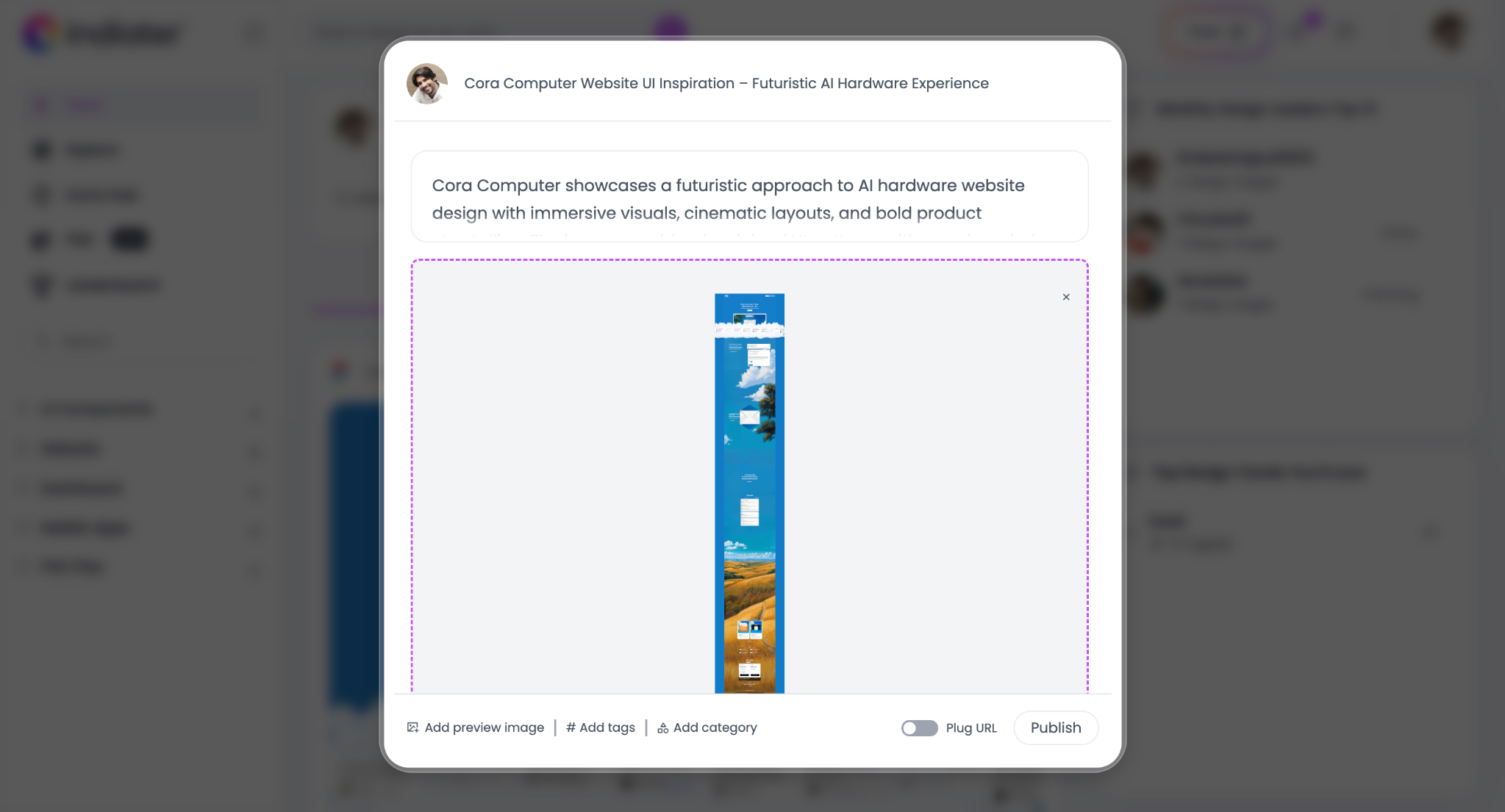
Step 1 — Open the Post Upload Window
Click the “Post� button from the Indiater dashboard. This opens the upload popup where you can create and publish your design post.
Step 2 — Add Your Design Title
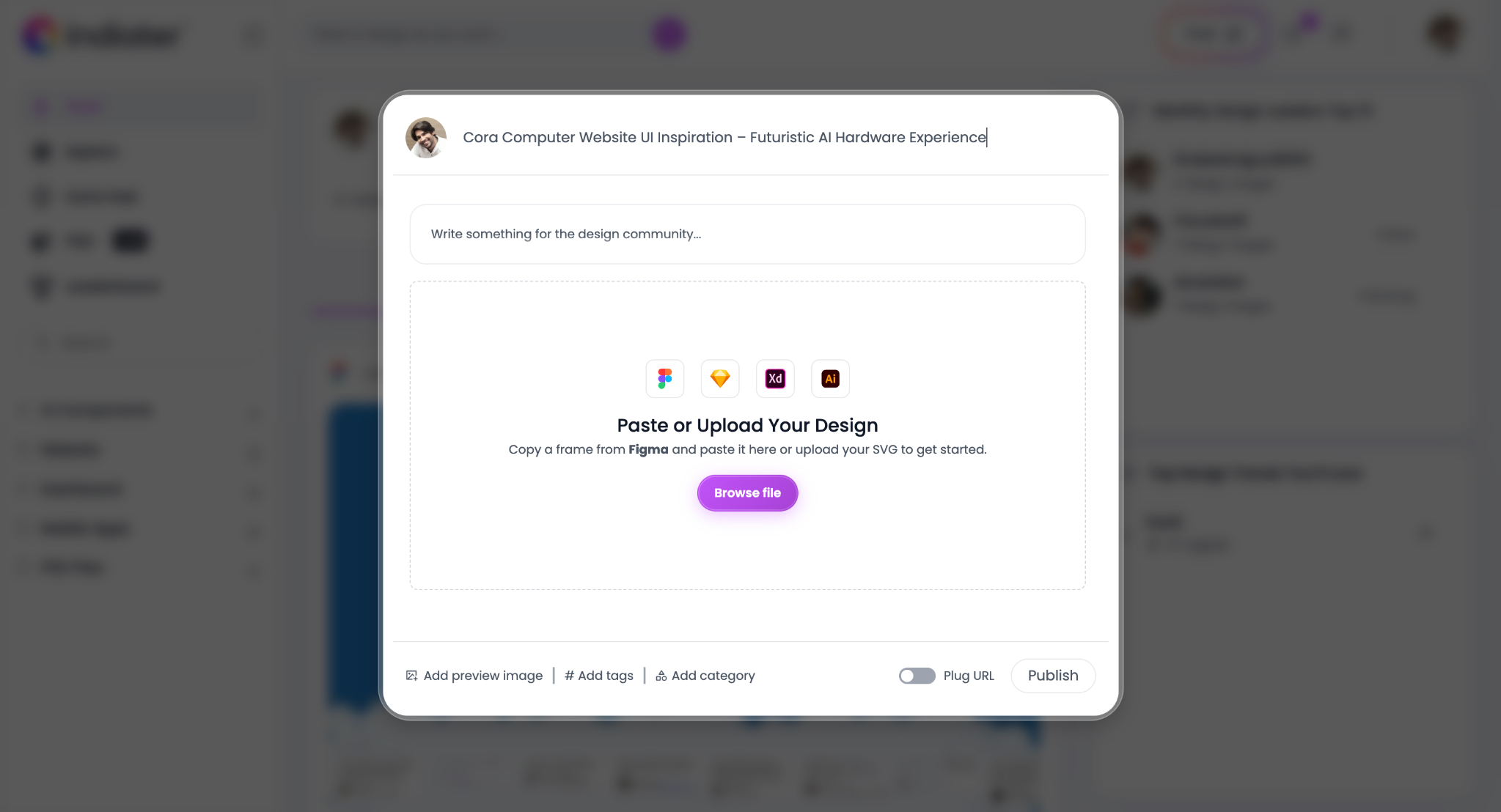
Start by adding a clear and descriptive title for your design post.
Example:
“Cora Computer Website UI Inspiration – Futuristic AI Hardware Experience�
A good title helps users quickly understand:
- Design style
- Product category
- Industry focus
- UI inspiration type
Best Practices:
- Keep titles clean and readable
- Mention the product or brand name
- Include design style keywords
- Avoid very short or generic titles
Step 3 — Add Design Description
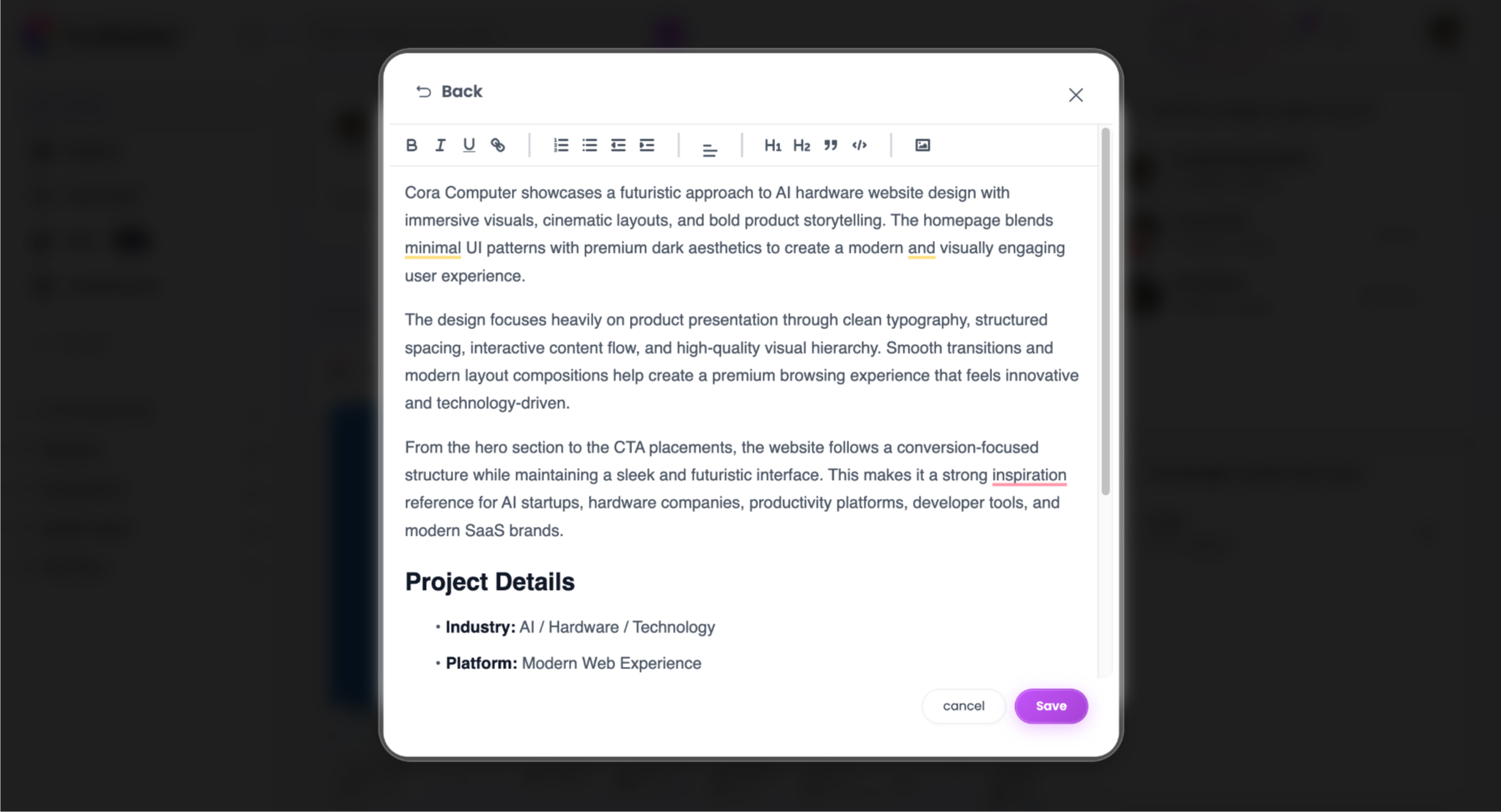
Write a detailed description about your design.
Use the editor to explain:
- Design inspiration
- UI style
- Product experience
- Layout approach
- Typography and spacing
- Visual direction
- Interaction design
You can also add:
- Headings
- Formatting
- Links
- Lists
- Rich text styling
This helps make your post more professional and informative.
Suggested Guidelines:
- Write in short readable paragraphs
- Explain the purpose of the design
- Mention UI/UX highlights
- Describe the user experience
- Keep formatting clean and structured
Step 4 — Paste or Upload Your Design
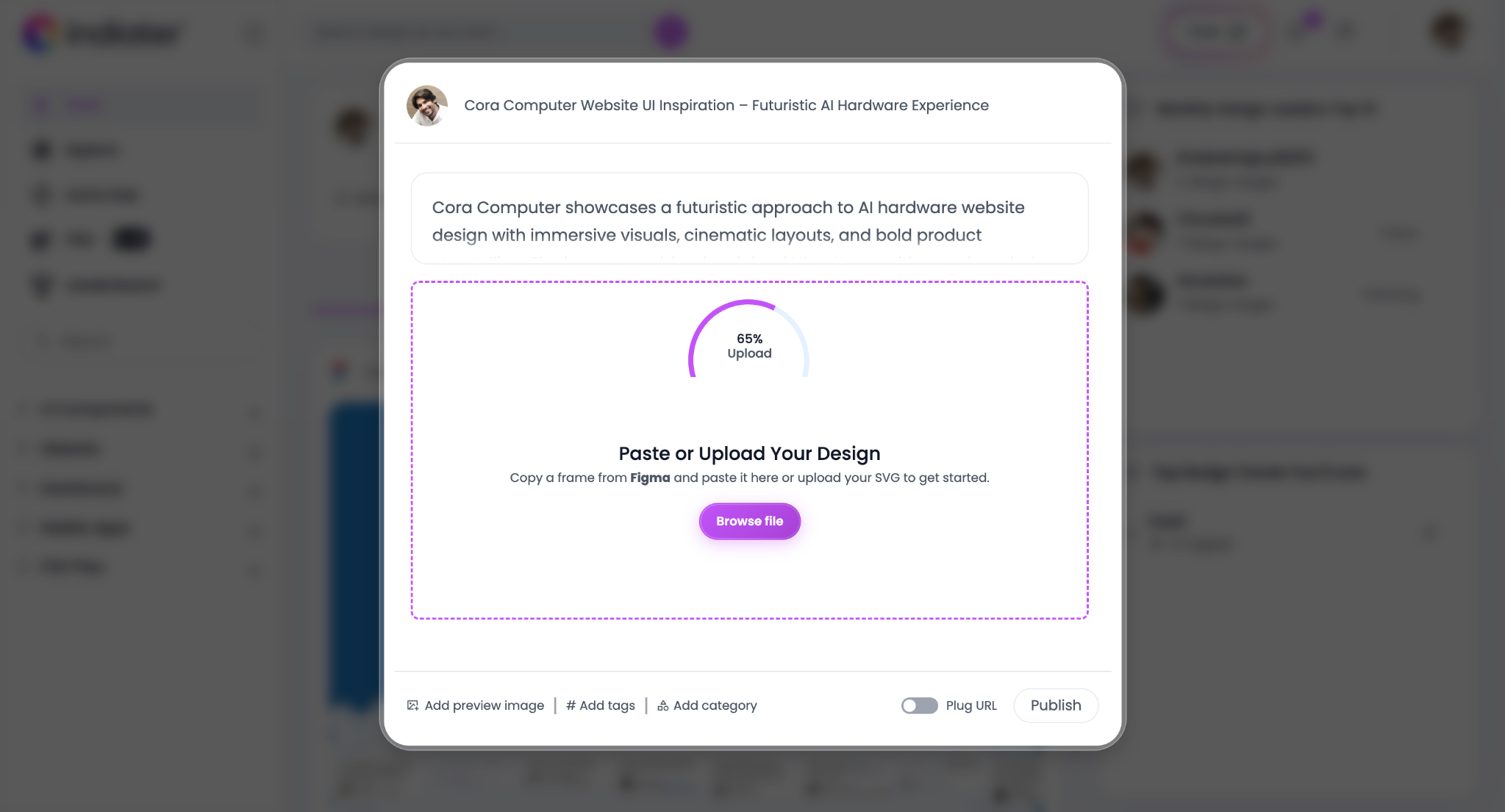
You can directly paste or upload your design inside Indiater.
Supported workflows include:
- Paste copied Figma frames
- Upload SVG files
- Upload website screenshots
- Upload UI preview images
- Import long landing page designs
Indiater supports designs from:
Upload Progress
During upload, Indiater displays the upload progress status. This helps users understand when the design is processing successfully.
Suggested Guidelines:
- Use high-quality UI screenshots
- Upload clean and readable layouts
- Keep design previews visually polished
- Use responsive layouts whenever possible
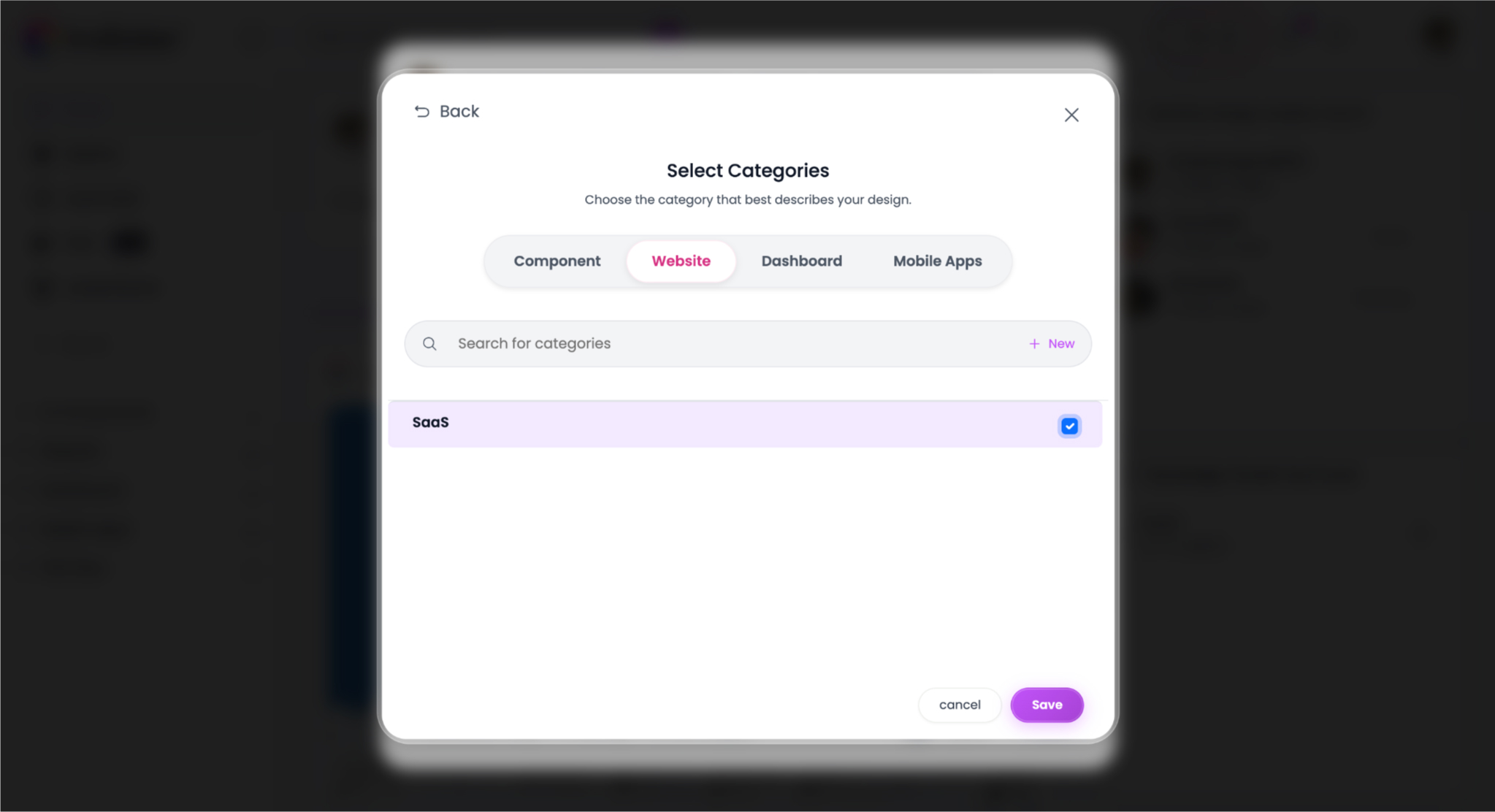
Step 5 — Select Categories
Choose the category that best matches your design.
Available categories include:
Suggested Guidelines:
- Choose the primary design type
- Use relevant industry categories
- Keep category selection focused
- Avoid selecting unrelated categories
Selecting the correct category helps organize your design for the community.
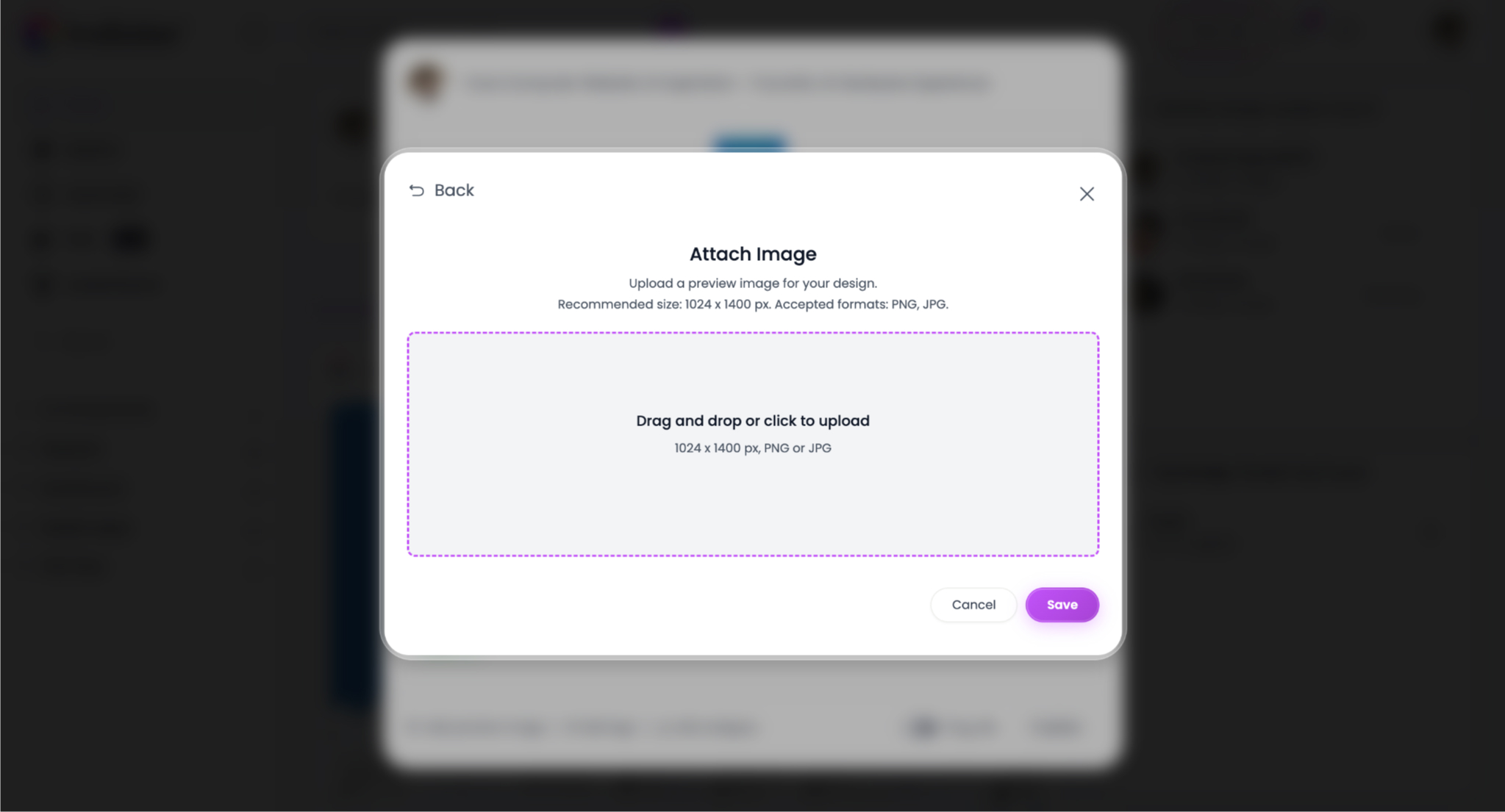
Step 6 — Upload a Preview Image
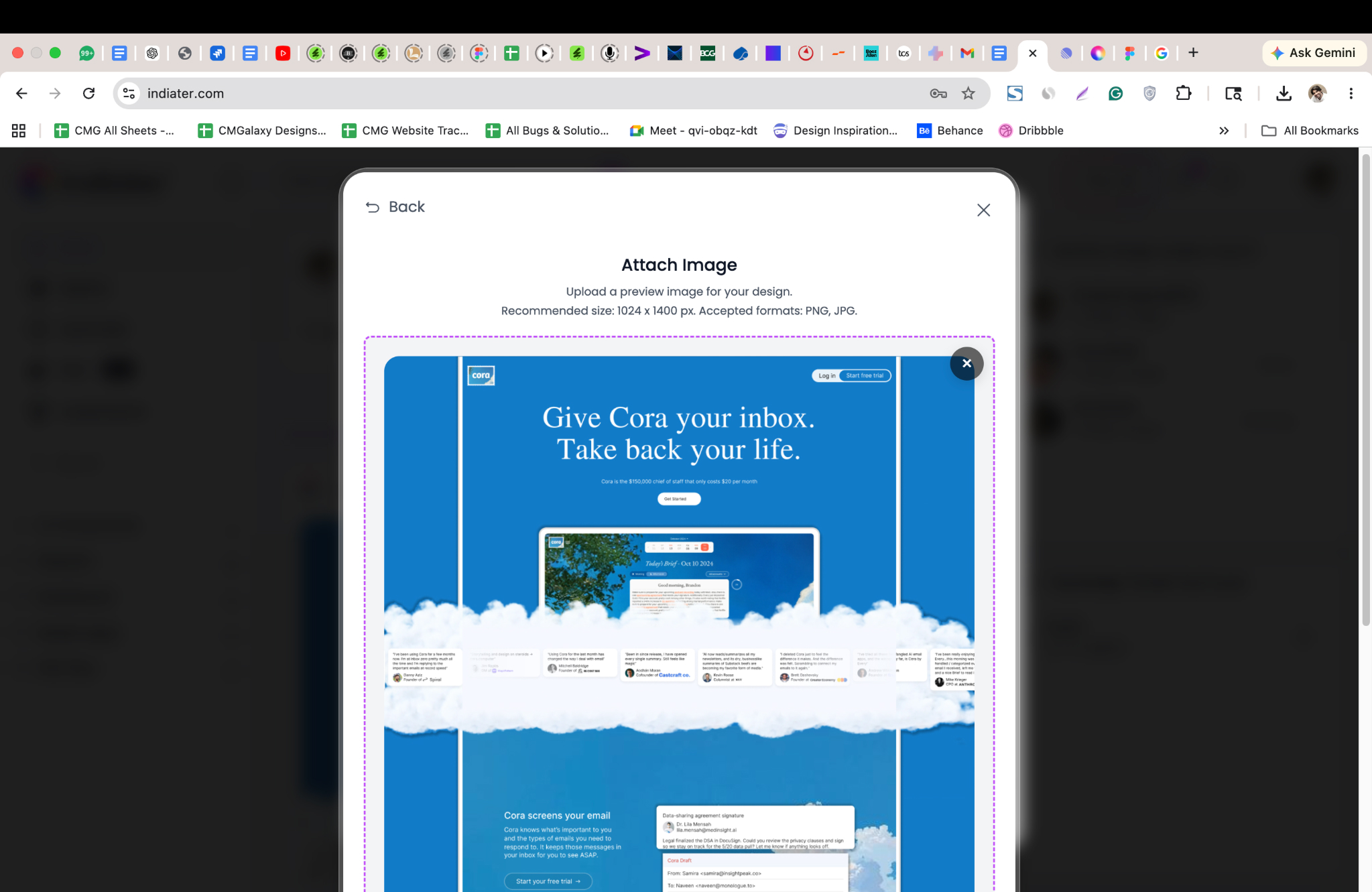
Add a high-quality preview image for your design post. Preview images help your post stand out inside the Indiater feed.
Recommended Image Guidelines:
- Recommended size: 1024 × 1400 px
- Supported formats: PNG and JPG
- Use clear and sharp screenshots
- Avoid blurry previews
- Showcase the best section of your design
Good preview images improve:
- Visibility
- Click-through rate
- Engagement
- Design presentation quality
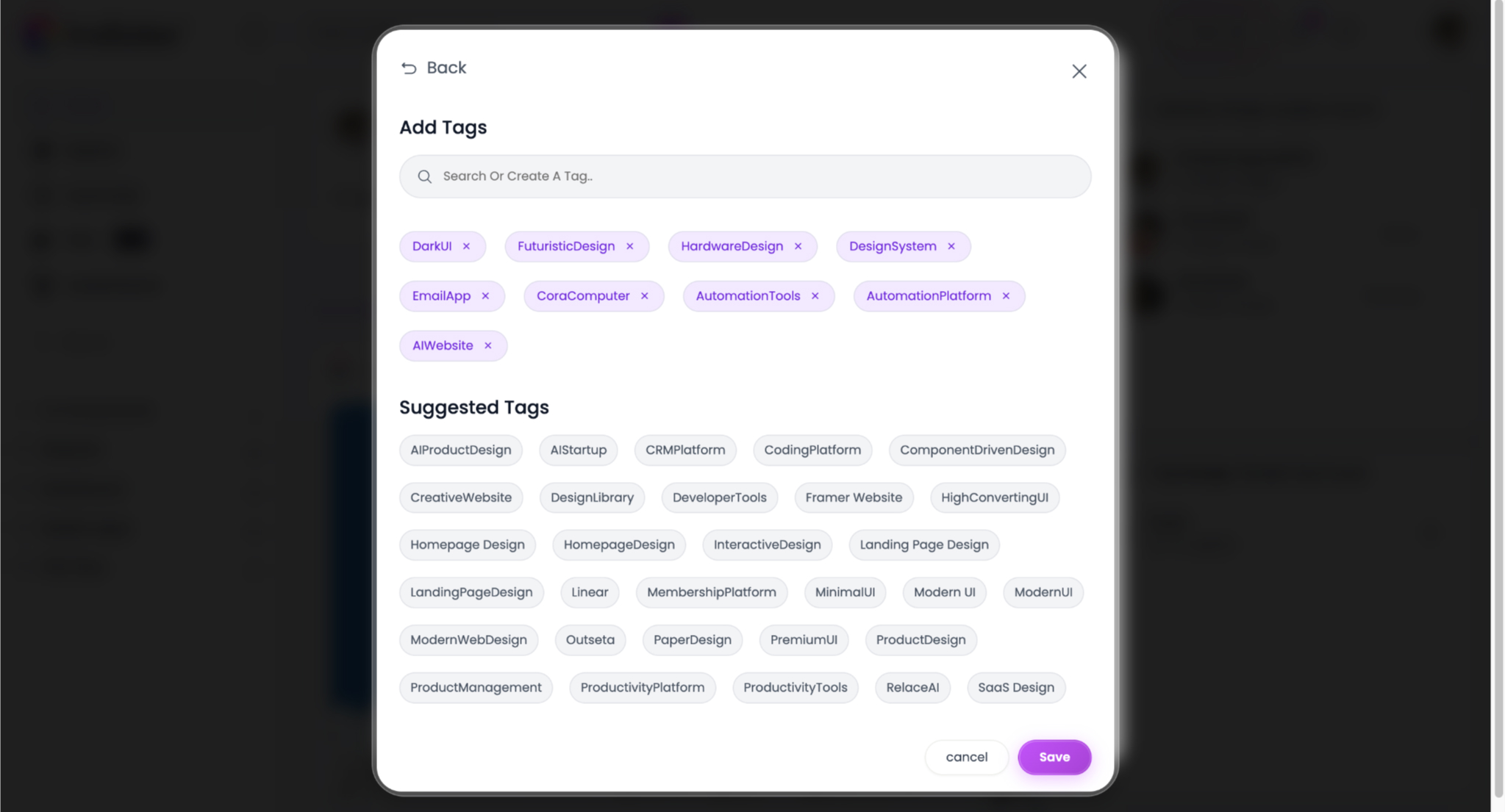
Step 7 — Add Tags
Tags help users discover your design post more easily.
You can:
- Search existing tags
- Create custom tags
- Select suggested tags
- Add multiple design keywords
Example Tags:
Suggested Guidelines:
- Use relevant keywords only
- Avoid unrelated tags
- Add 5–10 focused tags
- Include UI and industry keywords
- Use searchable design terms
Good tags improve design discoverability across Indiater.
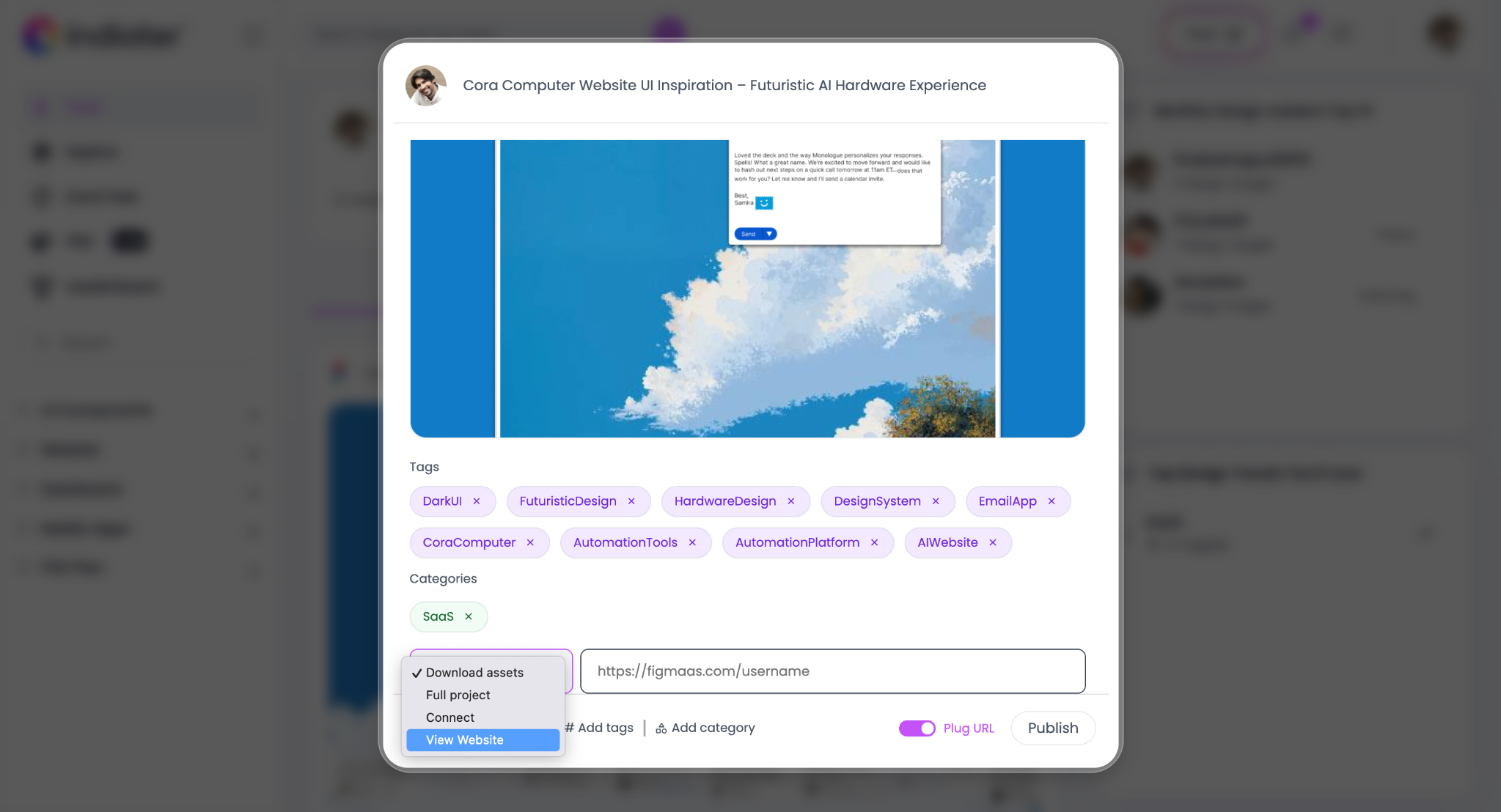
Step 8 — Add Website URL (Optional)
Enable the “Plug URL� option to connect your live website.
This allows users to:
- Visit the live project
- Explore interactions
- Experience animations
- View the complete product experience
Suggested Guidelines:
- Add valid live URLs only
- Use production-ready links
- Connect real product websites
- Ensure links are publicly accessible
Step 9 — Publish Your Design
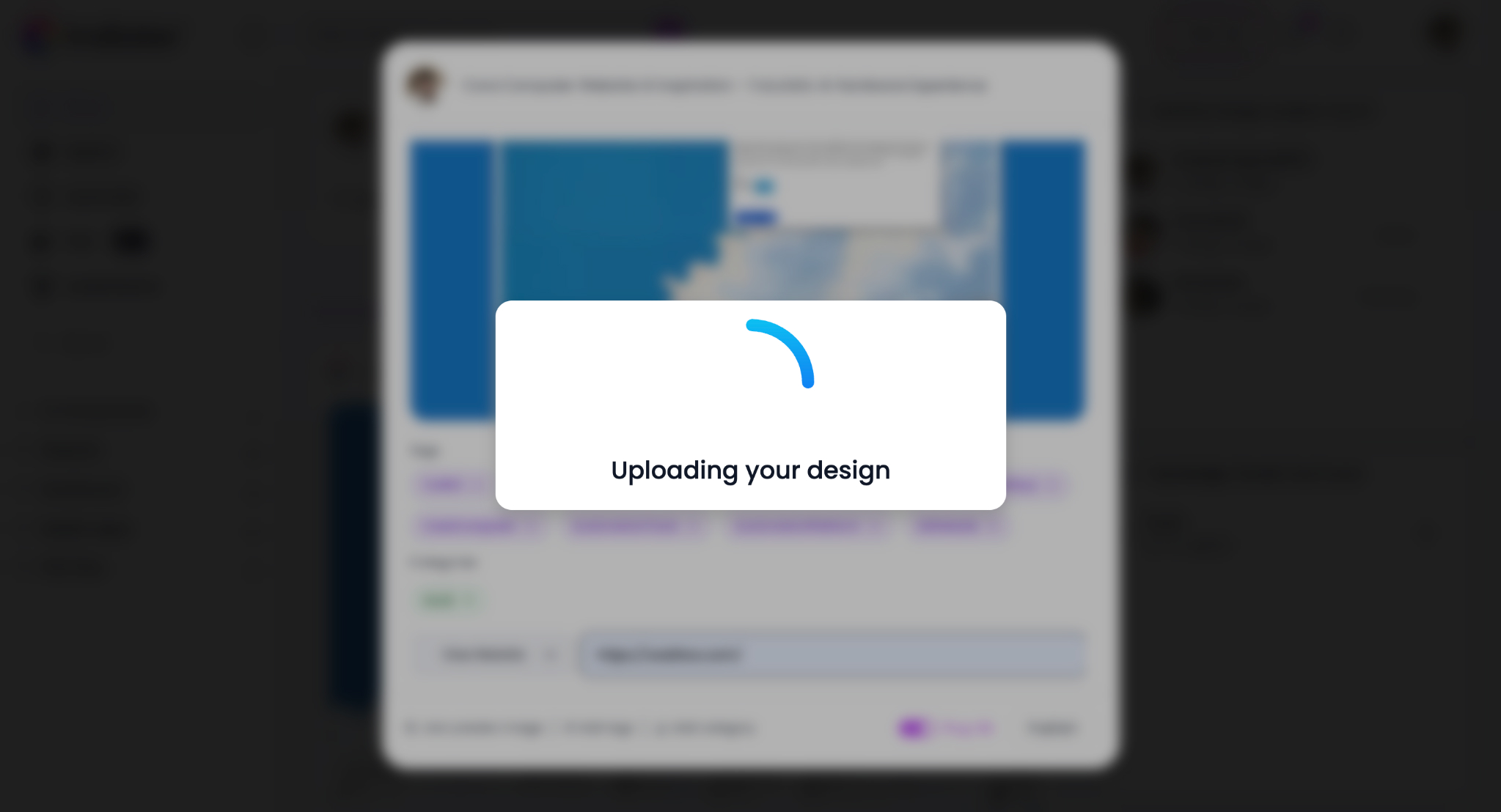
Once everything is ready, click the “Publish� button. Indiater will process and upload your design post to the platform.
During publishing, users can see the upload progress state.
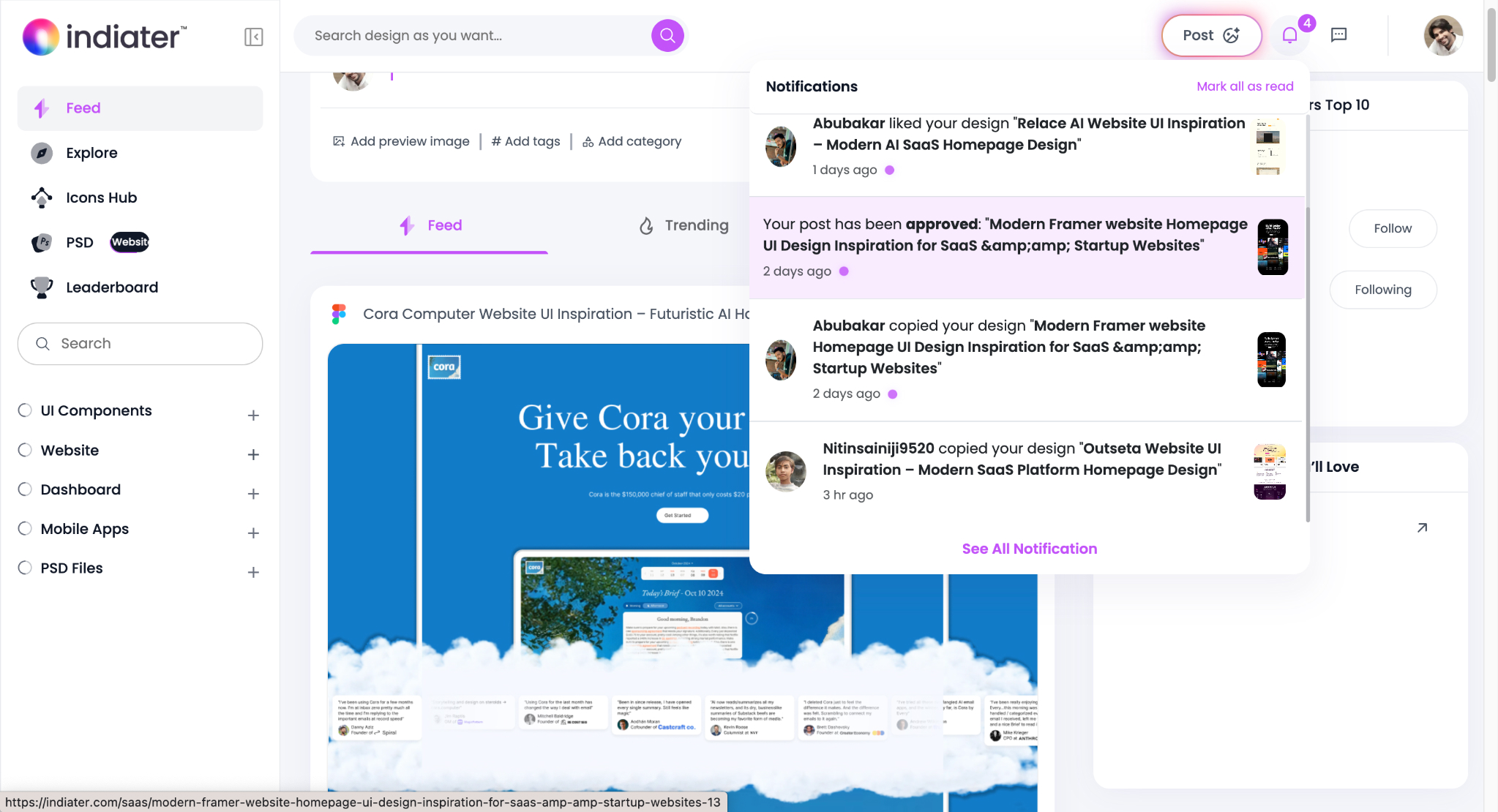
After publishing:
- Your post becomes visible on the feed
- Designers can discover your work
- Users can like and copy your design
- Your design can receive engagement and visibility
Community Engagement:
- Likes
- Design copies
- Approval notifications
- Community engagement
- Profile visibility
Why Designers Upload on Indiater
Indiater helps designers showcase their creativity and connect with modern product teams.
- Share design inspiration
- Build your design portfolio
- Reach the UI/UX community
- Showcase premium UI work
- Inspire other designers
- Gain visibility for your projects
- Share Figma and UI workflows
- Grow your personal design brand
Best Practices for Better Design Posts
To create high-performing posts on Indiater:
- Use clean preview images
- Write short and clear descriptions
- Add relevant tags
- Upload high-quality UI designs
- Showcase unique layouts
- Use modern typography and spacing
- Share responsive designs
- Keep presentations visually polished
Well-presented design posts receive more engagement and visibility.
Upload Different Types of UI Designs
Indiater supports multiple design formats and workflows. You can upload:
This makes Indiater a flexible platform for modern designers.
Frequently Asked Questions
Can I upload designs directly from Figma?
Yes. You can paste copied Figma frames directly into the upload window.
What file types are supported?
You can upload SVG files, images, and pasted design frames.
Can I add live website links?
Yes. Enable the Plug URL option and add your website link.
Can I upload mobile app UI?
Absolutely. Indiater supports mobile app screens and responsive layouts.
Is Indiater useful for design portfolios?
Yes. Designers can showcase projects and build visibility within the UI/UX community.