
How It Works
Discover how Figmaas helps you find and share the best design inspirations.
How It Works – Copy UI Designs from Indiater to Figma
Copying premium real website layouts and landing page designs into Figma has never been easier. With Indiater’s Copy to Figma workflow, designers, agencies, startups, and product teams can instantly import editable UI layouts into Figma and speed up the entire design process.
Users can easily copy websites, landing pages, section layouts, dashboard UI, mobile app screens, web app layouts, and editable Figma components directly into their workflow. Instead of rebuilding designs from screenshots, teams can instantly paste fully editable layouts into Figma and start customizing them within seconds.
This helps designers save time, improve workflow efficiency, maintain design consistency, and create modern digital experiences much faster.
This knowledge base guide explains how the Copy to Figma feature works, how to use it effectively, and why it helps modern UI/UX teams create faster and more scalable digital products.
What is Copy to Figma?
Copy to Figma is a design workflow feature by Indiater that allows users to instantly copy premium website layouts, landing page sections, and UI components directly into Figma.
Instead of rebuilding interfaces manually, users can:
- Browse modern UI sections on Indiater
- Select a premium layout or landing page design
- Click Copy to Figma
- Paste the design directly into Figma
- Edit and customize the layout instantly
The copied design remains fully editable and production-ready for real product workflows.
Why Designers Use Indiater Copy to Figma
Modern product teams need speed, consistency, and scalability.
Recreating layouts from screenshots or references consumes unnecessary design hours. Indiater solves this problem by providing reusable UI sections that can instantly be transferred into Figma.
Key Benefits
- Save hours of UI recreation work
- Build landing pages faster
- Create premium SaaS websites quickly
- Maintain consistent spacing and typography
- Improve workflow efficiency for design teams
- Accelerate wireframing and prototyping
- Use scalable and modern UI patterns
- Reduce repetitive manual design tasks
How to use Indiater Copy to Figma (Video)
Check out this short video to see the Copy to Figma workflow in action.
Workflow Video Tutorial
How Copy to Figma Works
Indiater makes it easy to copy real website layouts and paste them directly into Figma.
Follow these simple steps.
Step 1 — Explore Website Designs on Indiater
Browse premium website inspiration, landing pages, dashboards, and modern UI designs on Indiater.
You can discover:
- SaaS websites
- Startup landing pages
- Dashboard UI
- Mobile app screens
- Hero sections
- Web app layouts
- Modern website inspiration
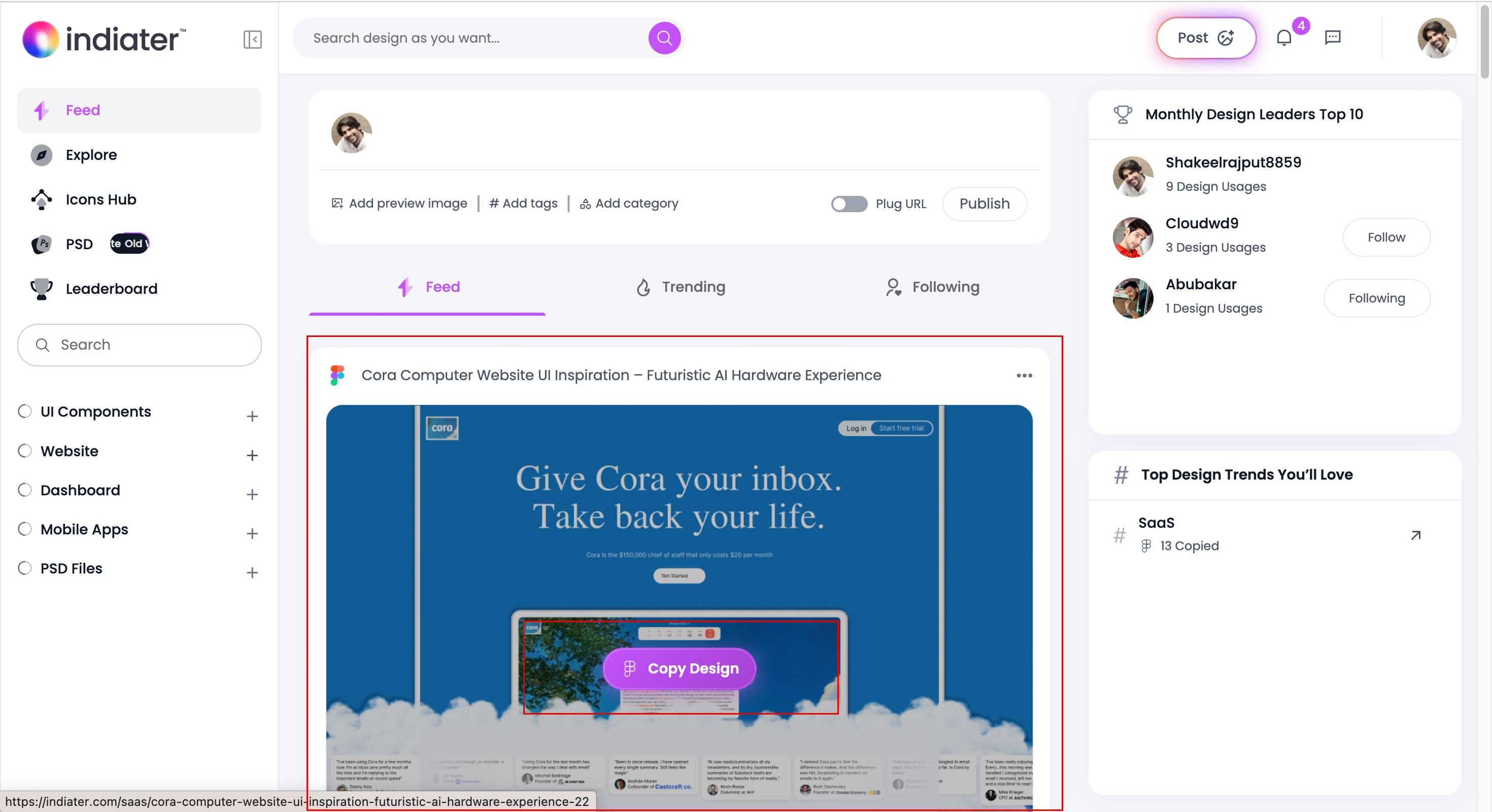
Step 2 — Open the Design Page
Click on any design you like to open the full design details page.
Here you can:
- Preview the full website
- Read design details
- View categories and tags
- Open the live website
- Copy the design into Figma
This helps users understand the design before importing it.
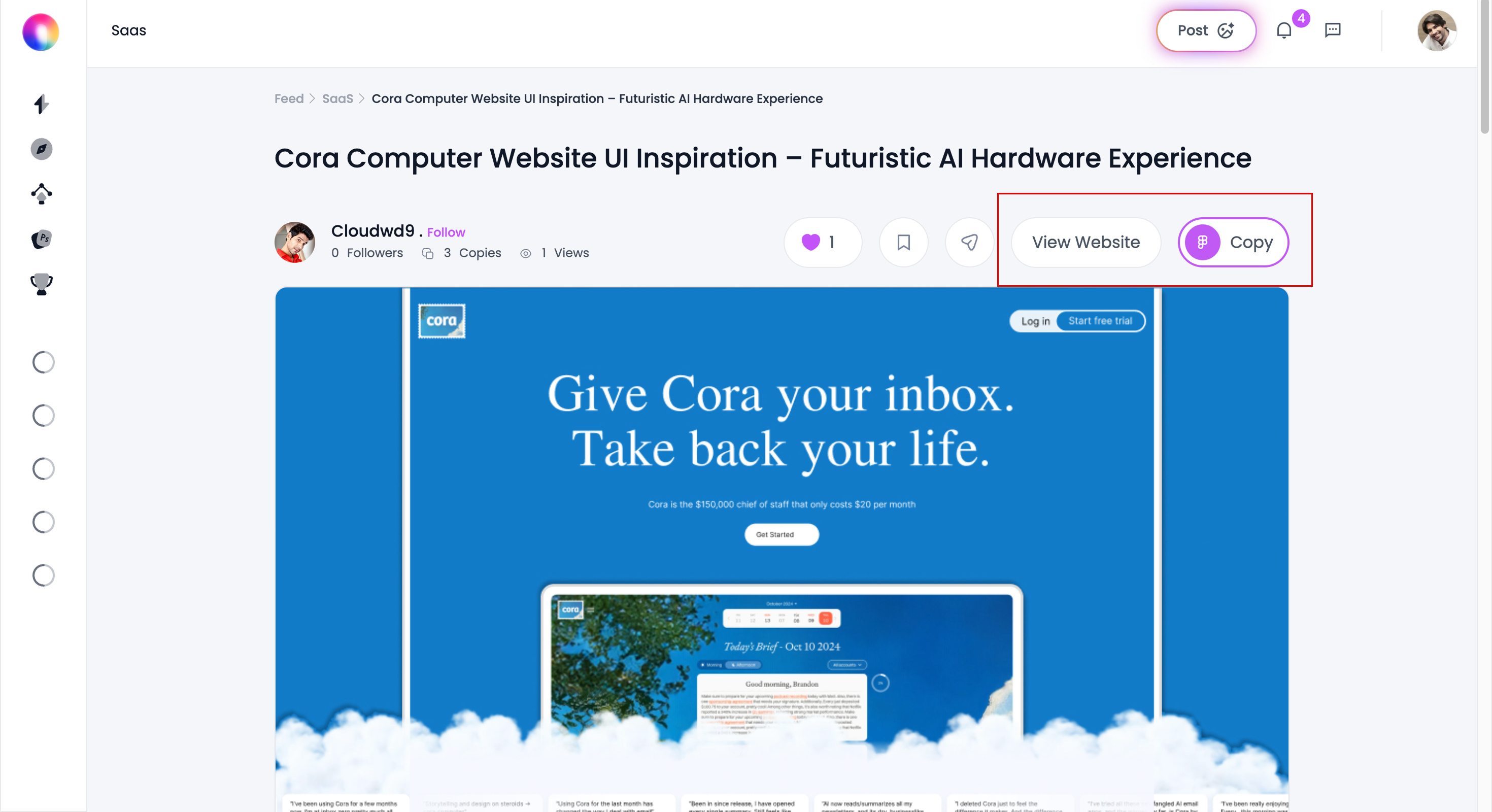
Step 3 — Click the “Copy� Button
Click the Copy button on Indiater. The website layout is automatically prepared for Figma.
The copied structure keeps:
- Typography
- Layout spacing
- Components
- Cards and sections
- Alignment
- Design structure
This saves hours of manual recreation work.

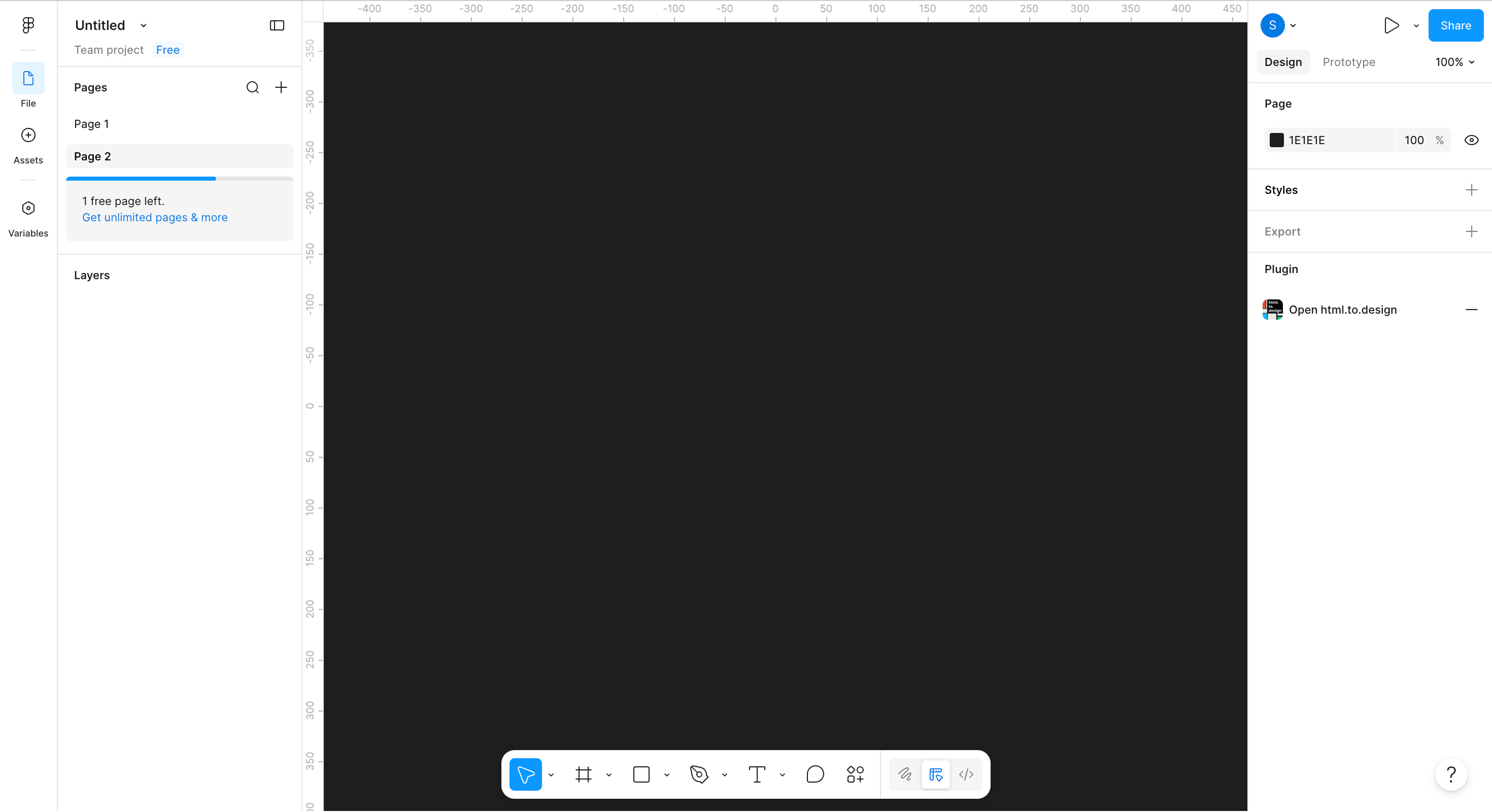
Step 4 — Open Figma
Open your Figma workspace.
You can:
- Create a new file
- Open an existing project
- Start a landing page design
- Use your design system page
Indiater works with standard Figma workflows.
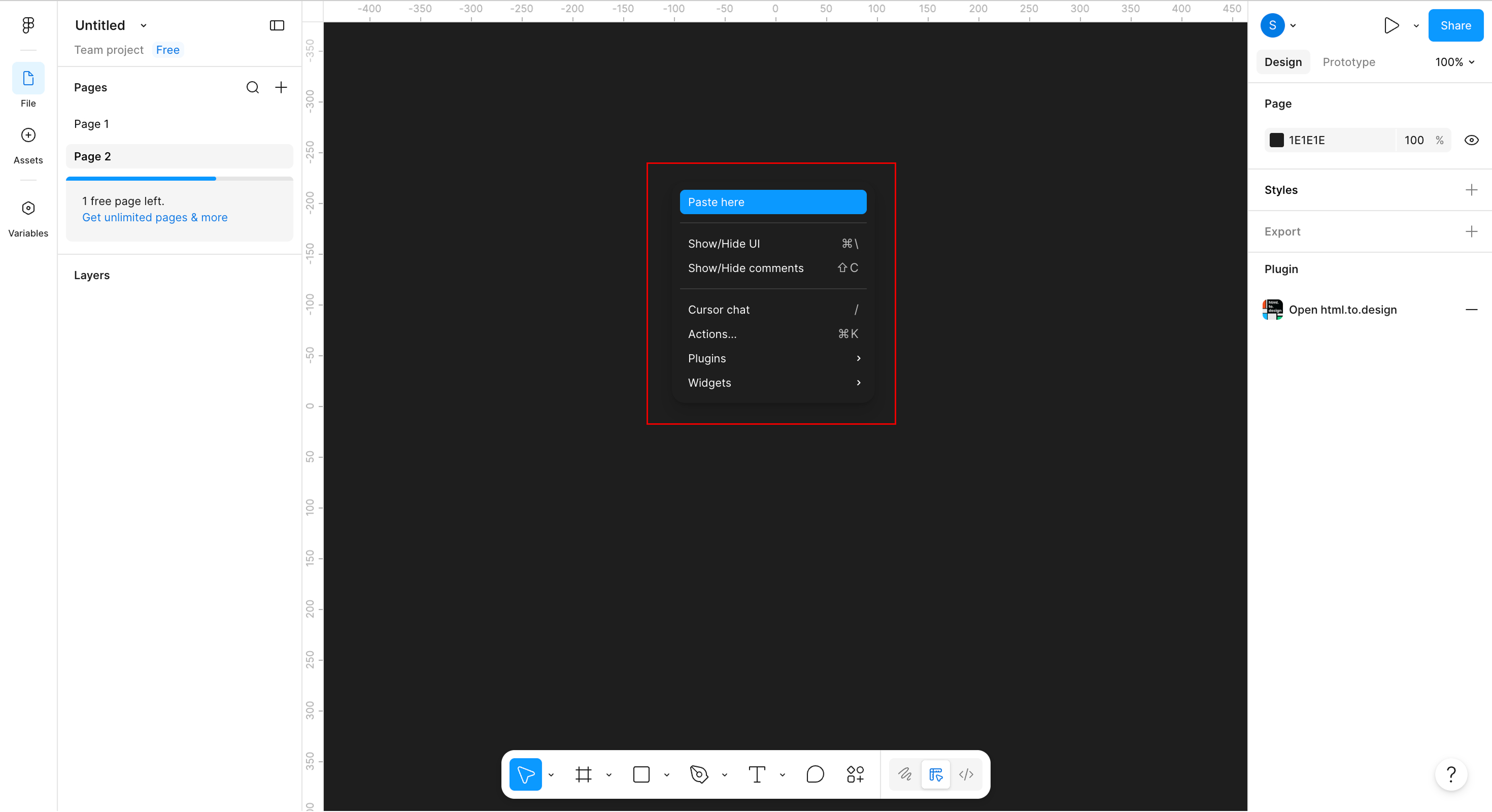
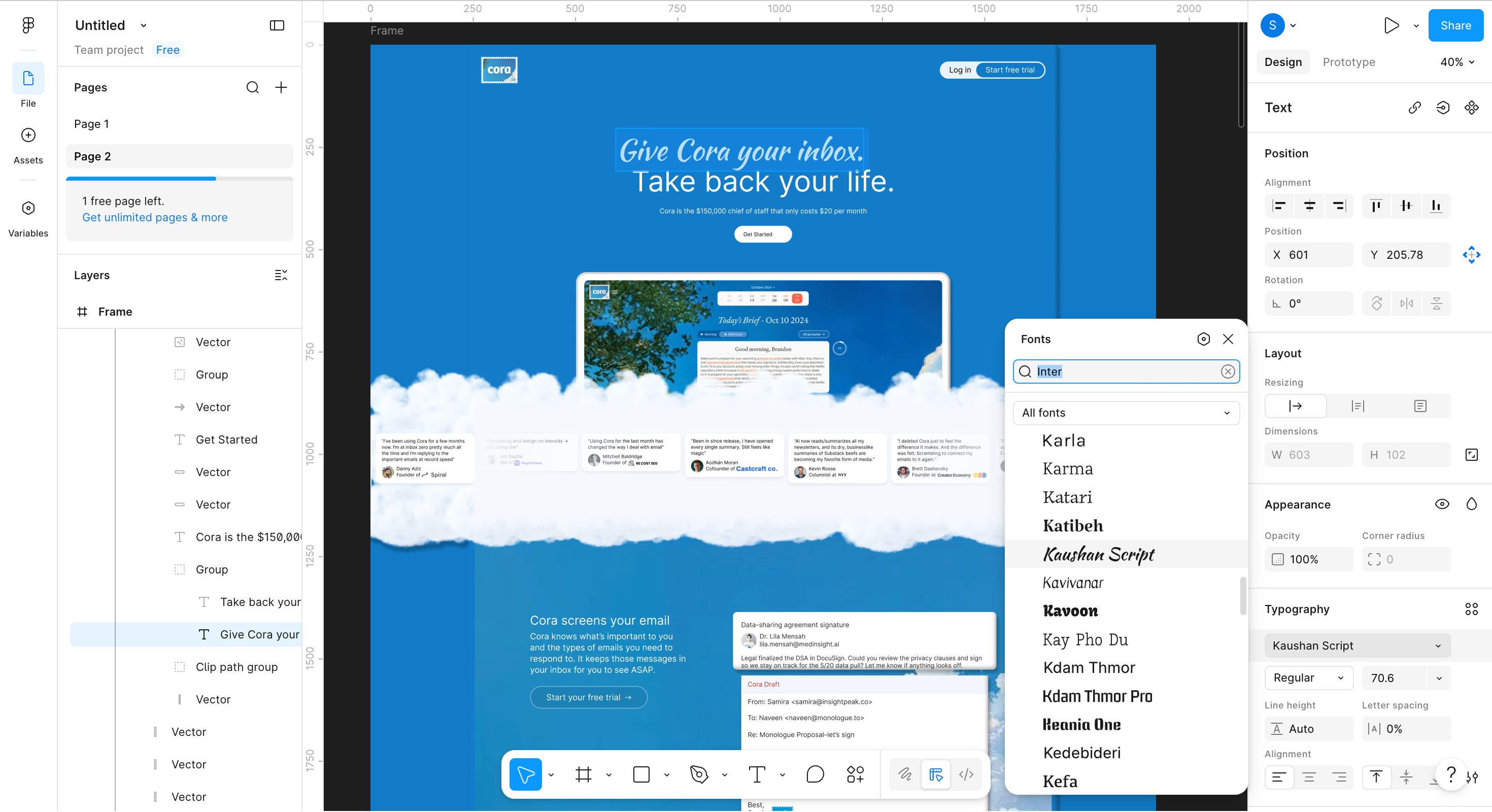
Step 5 — Paste the Design into Figma
Inside Figma:
- Right click anywhere on the canvas
- Click “Paste here�
- Or use keyboard shortcuts
Within seconds, the complete website layout appears in Figma. Everything stays editable and organized.
Step 6 — Edit the Imported Layout
After pasting, you can fully customize the design.
You can edit:
- Text
- Colors
- Images
- Buttons
- Typography
- Spacing
- Sections
- Components
You can also:
- Create reusable components
- Build prototypes
- Customize client projects
- Expand design systems
- Create production-ready UI
What Can You Copy?
With Indiater, users can copy:
- Real website layouts
- SaaS landing pages
- Hero sections
- Dashboard designs
- Product pages
- Website components
- Responsive UI sections
- Modern web experiences
All layouts remain editable inside Figma.
Why Designers Love Indiater
Most inspiration websites only show screenshots.
Indiater helps designers actually use the layouts by importing them directly into Figma.
Benefits
- Faster workflow
- Better productivity
- Reduced repetitive work
- Faster landing page creation
- Better UI consistency
- Easy prototyping
- Faster startup MVP design
This helps teams move from inspiration to design much faster.
Best For
Indiater Copy to Figma is perfect for:
- UI designers
- UX designers
- Agencies
- Startups
- Freelancers
- Product teams
- Webflow designers
- Developers
- SaaS companies
It is especially useful for creating modern websites, dashboards, SaaS products, and landing pages quickly.
Why Indiater is Different
Unlike static inspiration galleries, Indiater focuses on usable and editable design workflows.
Instead of only viewing designs, users can directly import real website layouts into Figma and start designing immediately.
This makes Indiater ideal for:
- UI designers
- UX designers
- Product designers
- Agencies
- Startups
- Freelancers
- SaaS teams
- Developers
- Marketing teams
Best Use Cases for Copy to Figma
SaaS Landing Page Design
Quickly build modern SaaS landing pages with ready-made UI sections.
Website Redesign Projects
Accelerate redesign workflows using editable premium layouts.
Startup MVP Design
Create MVP interfaces faster without starting from scratch.
Rapid Wireframing
Turn inspiration into wireframes within minutes.
Design Systems
Use scalable UI blocks to maintain consistency across products.
Client Presentations
Create polished mockups and presentations quickly.
UI Design Benefits for Modern Designers and Teams
Indiater is designed to improve the way modern designers work. Instead of spending hours rebuilding layouts manually, designers can focus more on creativity, product thinking, and user experience.
Faster UI Design Workflow
Copying layouts directly into Figma helps designers move from inspiration to execution much faster.
This reduces:
- Repetitive UI work
- Manual recreation time
- Layout rebuilding
- Design inconsistencies
- Slow production workflows
Teams can create interfaces in minutes instead of hours.
Better Design Consistency
Imported layouts maintain:
- Typography structure
- Proper spacing
- Visual hierarchy
- Component alignment
- Responsive sections
- Modern UI patterns
This helps teams maintain consistent design systems across projects.
Ideal for Landing Page Designers
Landing page designers can quickly:
- Test new layouts
- Build conversion-focused pages
- Create modern hero sections
- Experiment with UI styles
- Launch projects faster
This is especially useful for SaaS, startup, and marketing websites.
Great for Agencies and Freelancers
Agencies and freelancers can:
- Speed up client projects
- Create mockups faster
- Improve delivery timelines
- Build premium presentations
- Prototype ideas quickly
This helps reduce production time while improving design quality.
Useful for Product Teams
Product teams can use Indiater to:
- Build MVP interfaces
- Explore UI directions
- Create faster prototypes
- Improve collaboration
- Expand design systems
- Test product experiences
The workflow helps teams iterate faster during product development.
Mobile UI Design Support
Indiater is not limited to desktop websites.
Users can also explore and import:
- Mobile app UI
- Responsive mobile layouts
- Mobile landing pages
- App onboarding screens
- Mobile dashboard interfaces
- Responsive website sections
This makes it easier to design experiences across desktop, tablet, and mobile devices.
Screenshot Reference: Mobile UI or responsive design example from Indiater.
Better Inspiration Workflow
Most inspiration websites only provide screenshots.
Indiater transforms inspiration into editable design workflows.
Designers can:
- Discover inspiration
- Copy layouts instantly
- Paste directly into Figma
- Customize designs quickly
- Create production-ready interfaces faster
This creates a smoother and more practical UI/UX workflow for modern teams.
Frequently Asked Questions
Is the copied design editable in Figma?
Yes. Every copied section remains fully editable inside Figma.
Does Copy to Figma support auto layout?
Yes. Layout structure and responsive behavior are preserved wherever applicable.
Can I customize typography and colors?
Absolutely. Fonts, colors, spacing, components, and images can all be modified.
Can I use the layouts for client projects?
Yes. The workflow is designed for professional design and production use cases.
What type of layouts are available?
Indiater includes premium website layouts, SaaS landing pages, dashboards, responsive sections, and modern UI components.
Is this useful for agencies?
Yes. Agencies can significantly reduce design production time and improve workflow efficiency.