New · How to Upload Design Post

Share your UI designs
with the global community.

Uploading your UI designs on Indiater is quick and simple. Share website layouts, mobile app screens, dashboard UI, and Figma components with modern product teams.

Global Recognition
Portfolio Visibility
Community Appreciation
Design Inspiration

Design Published

Live in the gallery
indiater.com/upload
Content Types

What can you upload on Indiater?

Indiater helps designers showcase their work, gain visibility, and inspire other creators. Share these types of designs:

Website UI designs

Share modern website layouts and responsive marketing site concepts.

Landing page layouts

Upload high-converting landing pages and promotional product sites.

Dashboard interfaces

Upload complex data dashboards and analytics interface layouts.

Mobile app screens

Showcase iOS or Android app designs, onboarding flows, and interactions.

Web app designs

Upload specific B2B and B2C SaaS product interfaces and workflows.

Figma components

Share reusable UI kits, component libraries, and scalable design assets.

Creative UI concepts

Inspire others with experimental UI designs and futuristic concepts.

Design systems

Share complete design systems including typography, colors, and patterns.

UI inspiration posts

Upload beautiful interfaces specifically to provide inspiration to other designers.

Step-by-Step Guide

How to Upload a Design Post.

Follow these simple steps to publish your design and share it with the community.

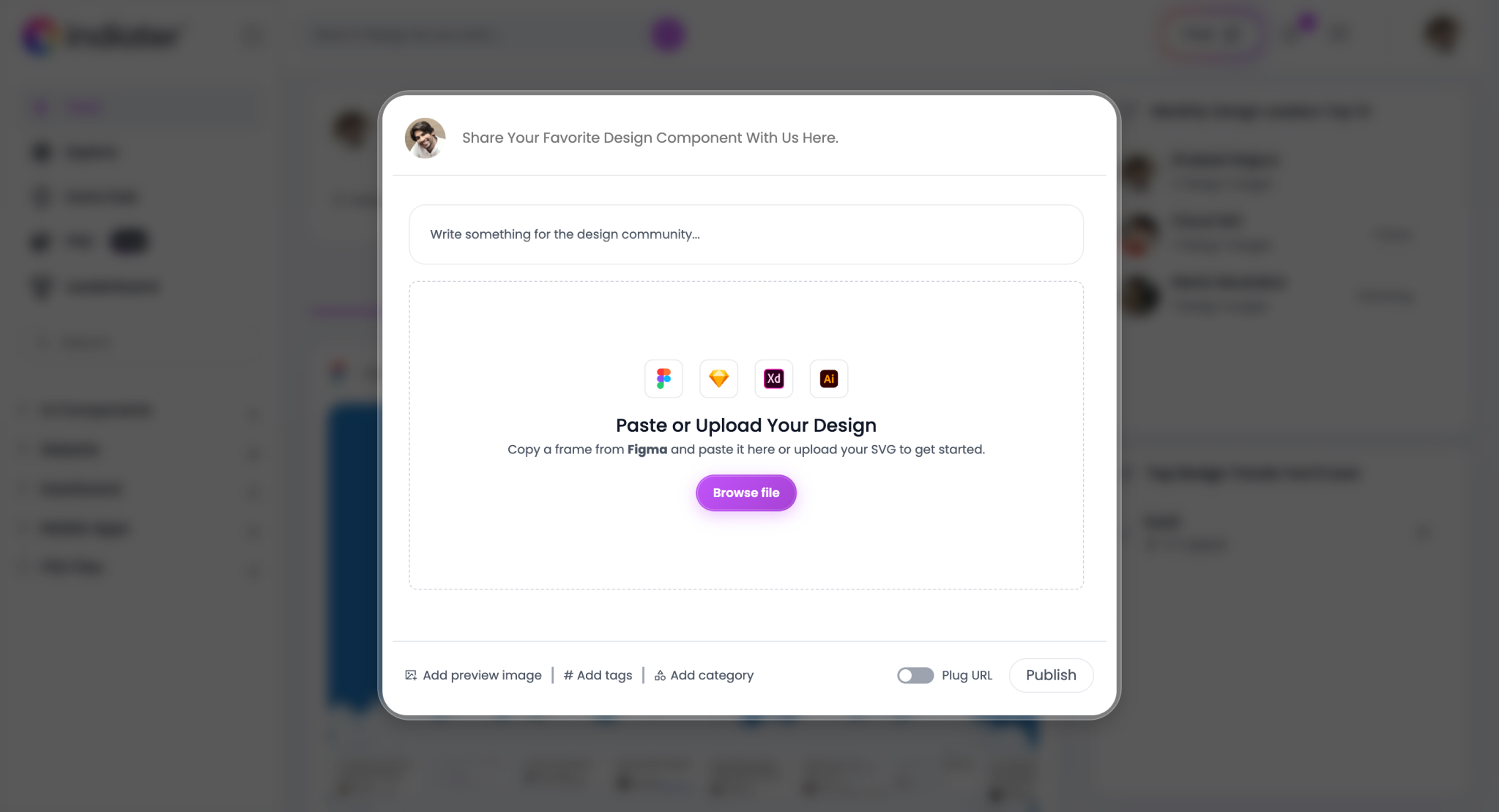
Step 01

Open the Post Upload Window

  • Click the "Post" button from the top navigation bar or your profile dashboard.
  • This will open the design upload popup where you can build your design post.
Step visualization
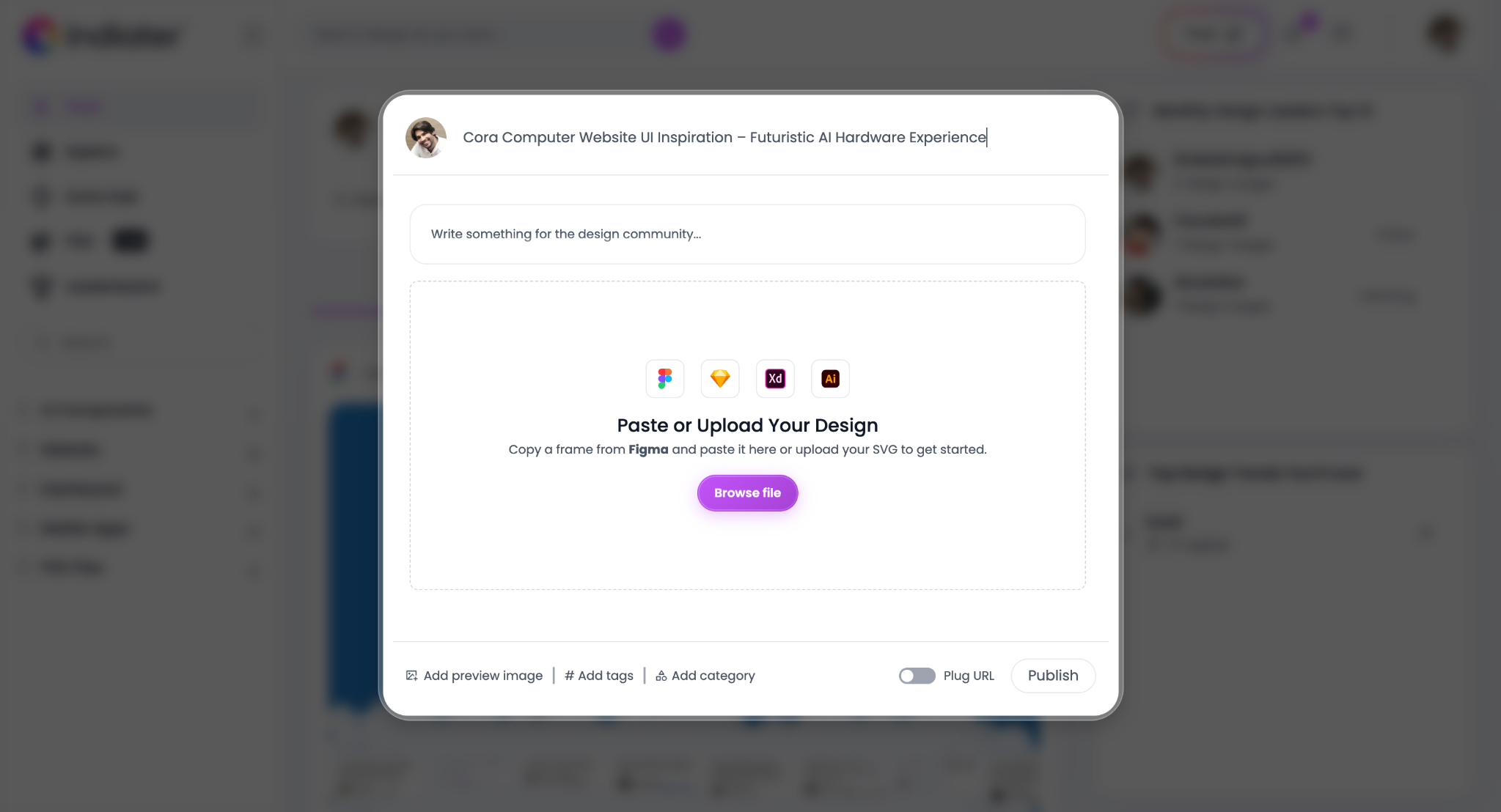
Step 02

Add Your Design Title

Your title is the first thing users see. Make it descriptive and professional.

  • Mention what the design is about (e.g., "Cora Website UI - Futuristic AI").
  • Avoid short, generic titles like "Design 1" or "My UI".
Step visualization
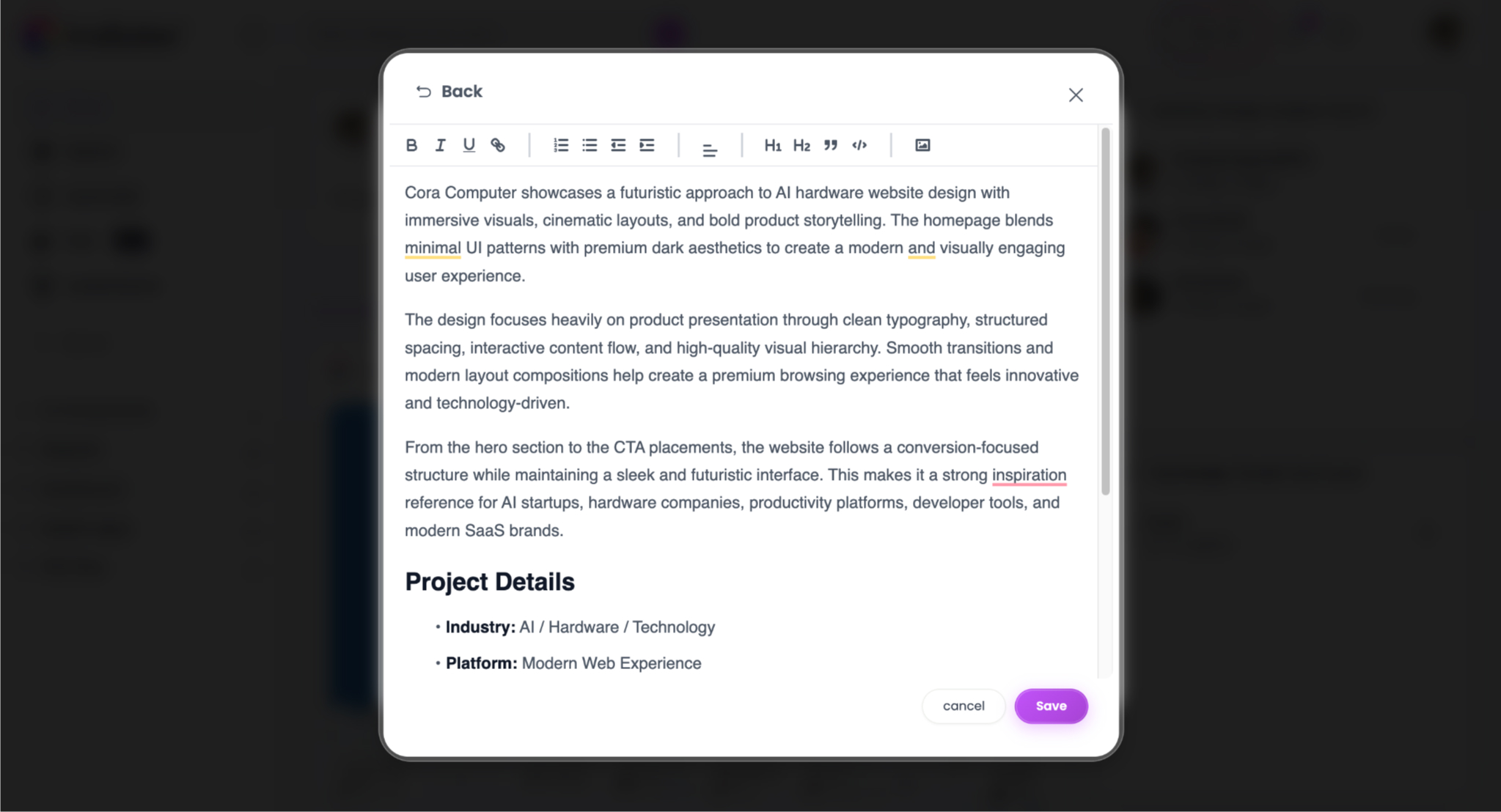
Step 03

Add Design Description

Help users understand the thought process behind your UI.

  • Explain the inspiration, UI style (e.g., Dark Mode, Glassmorphism), and layout approach.
  • Mention typography and color choices if relevant.
Step visualization
Step 04

Paste or Upload Your Design

You have two ways to add your design to Indiater:

  • Option 1: Paste directly. Copy frames directly from Figma and paste them into the editor window.
  • Option 2: Upload Files. You can upload high-quality SVG files or standard images (PNG/JPG).
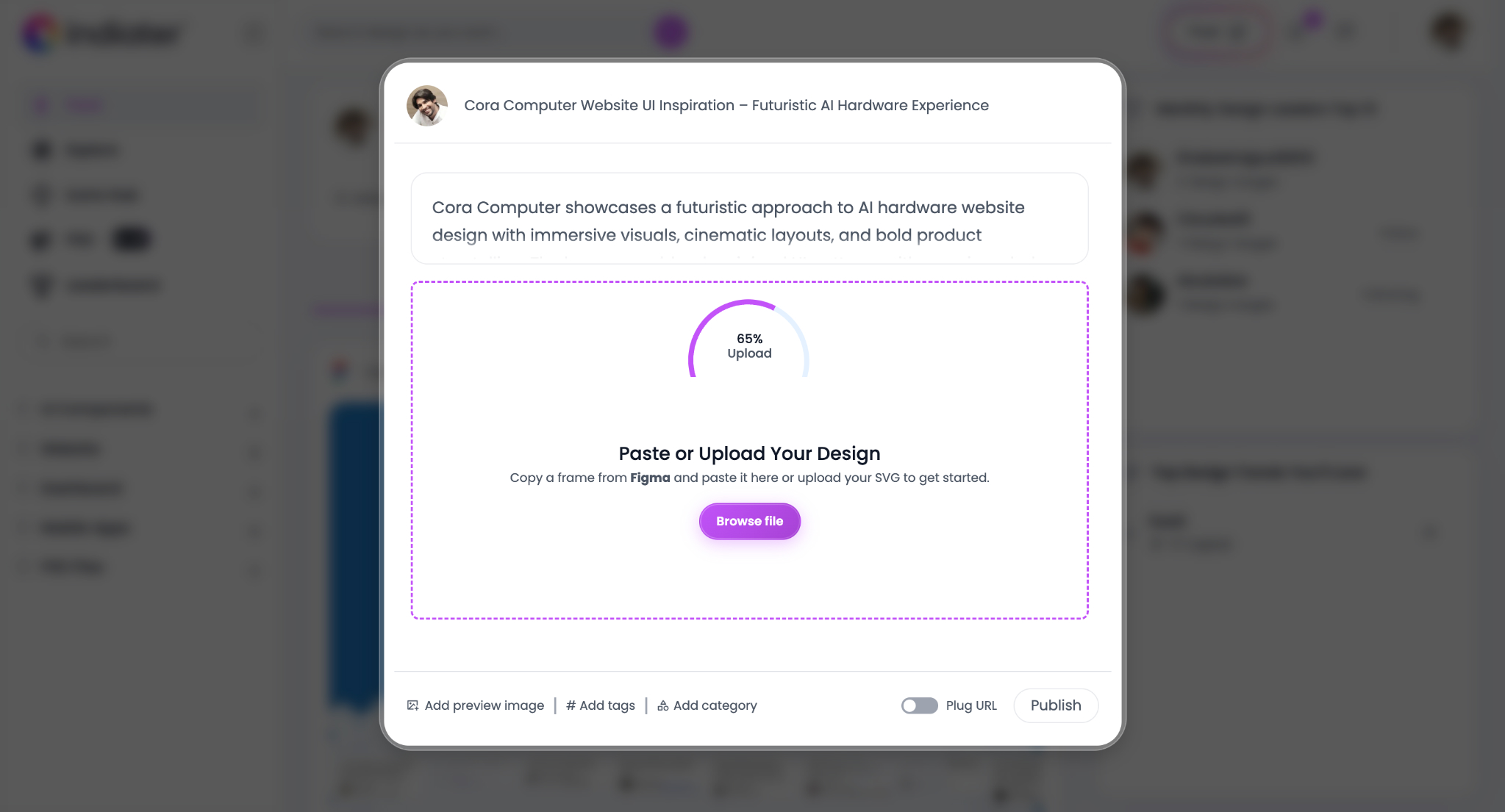
Step visualization
Step 05

Upload a Preview Image

The preview image is the thumbnail that appears on the Indiater feed.

  • Recommended Size: 1024x1400px (Vertical/Portrait works best).
  • Make sure it looks clean and attractive without excessive text overlays.
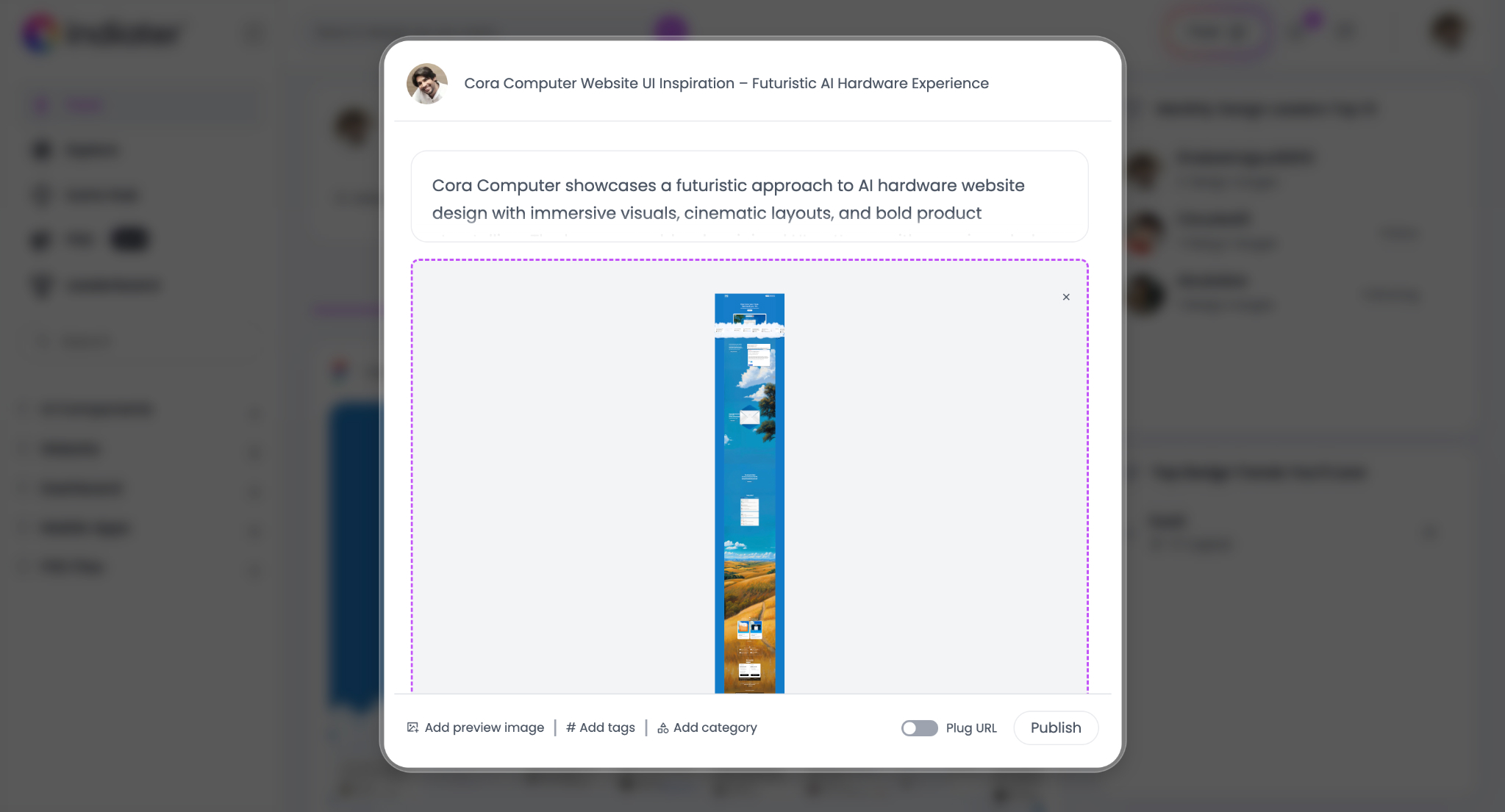
Step visualization
Step 06

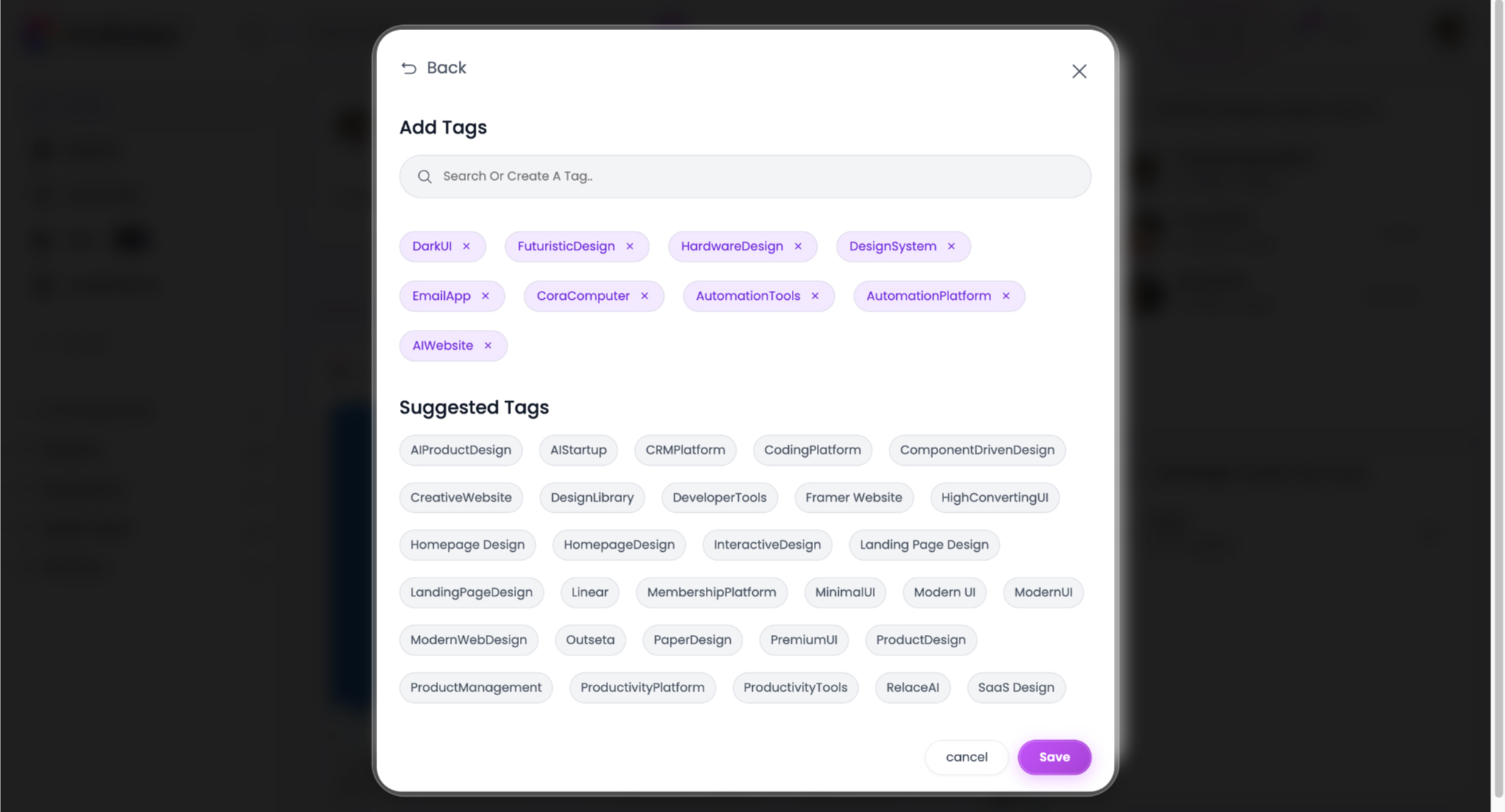
Add Tags

Tags help your design get discovered in search and related posts.

  • Use specific tags (e.g., #DarkUI, #SaaSDesign, #FuturisticDesign).
  • Add 3 to 5 highly relevant tags.
Step visualization
Step 07

Select Categories

Categorizing your post ensures it reaches the right audience.

  • Select the primary type (e.g., Website, Dashboard, Mobile Apps, Components, Landing Pages).
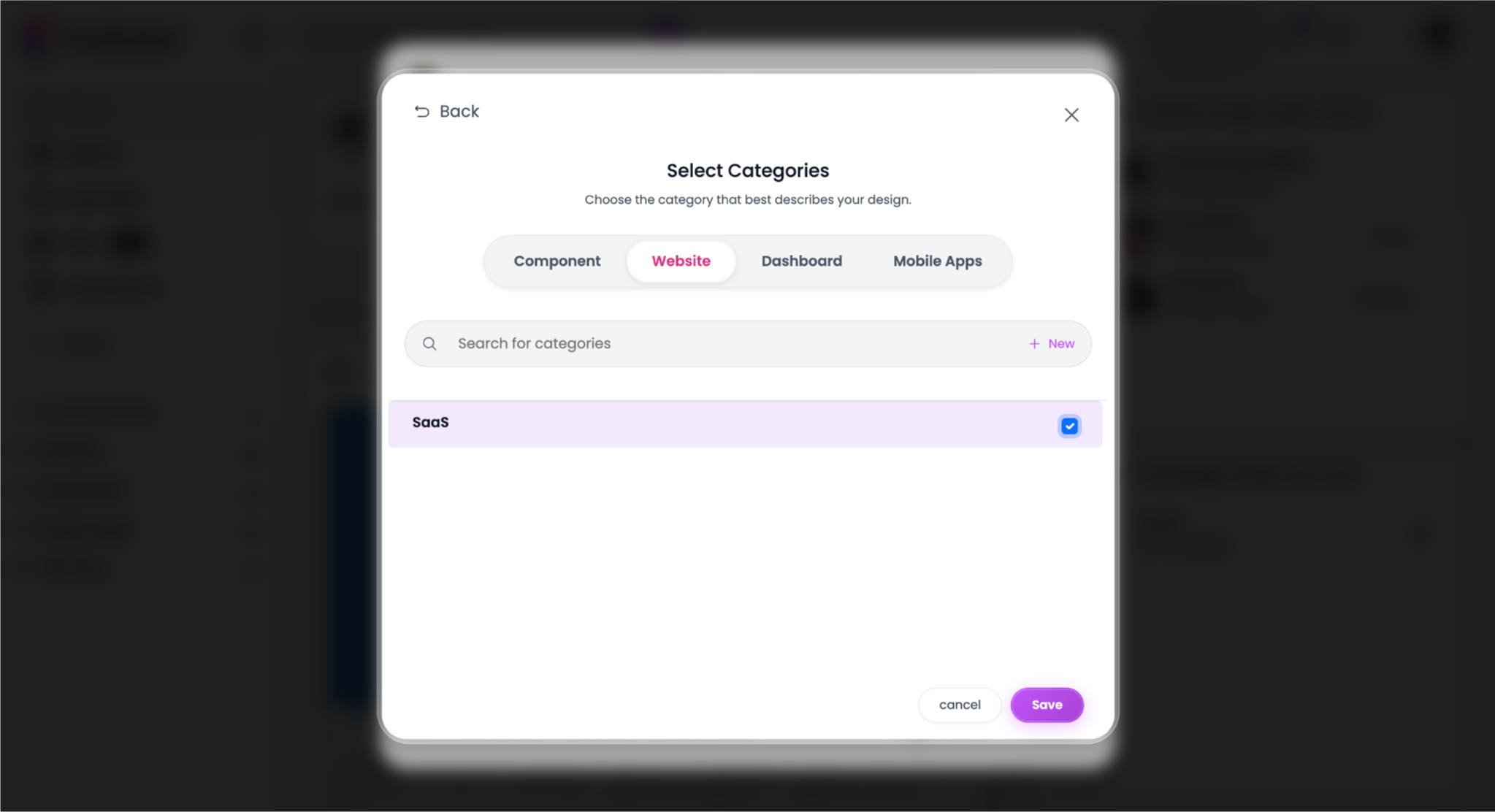
Step visualization
Step 08

Add Website URL (Optional)

If your design is live on the internet, you can link it directly.

  • Use the "Plug URL" option to add the live website link so users can experience the real product.
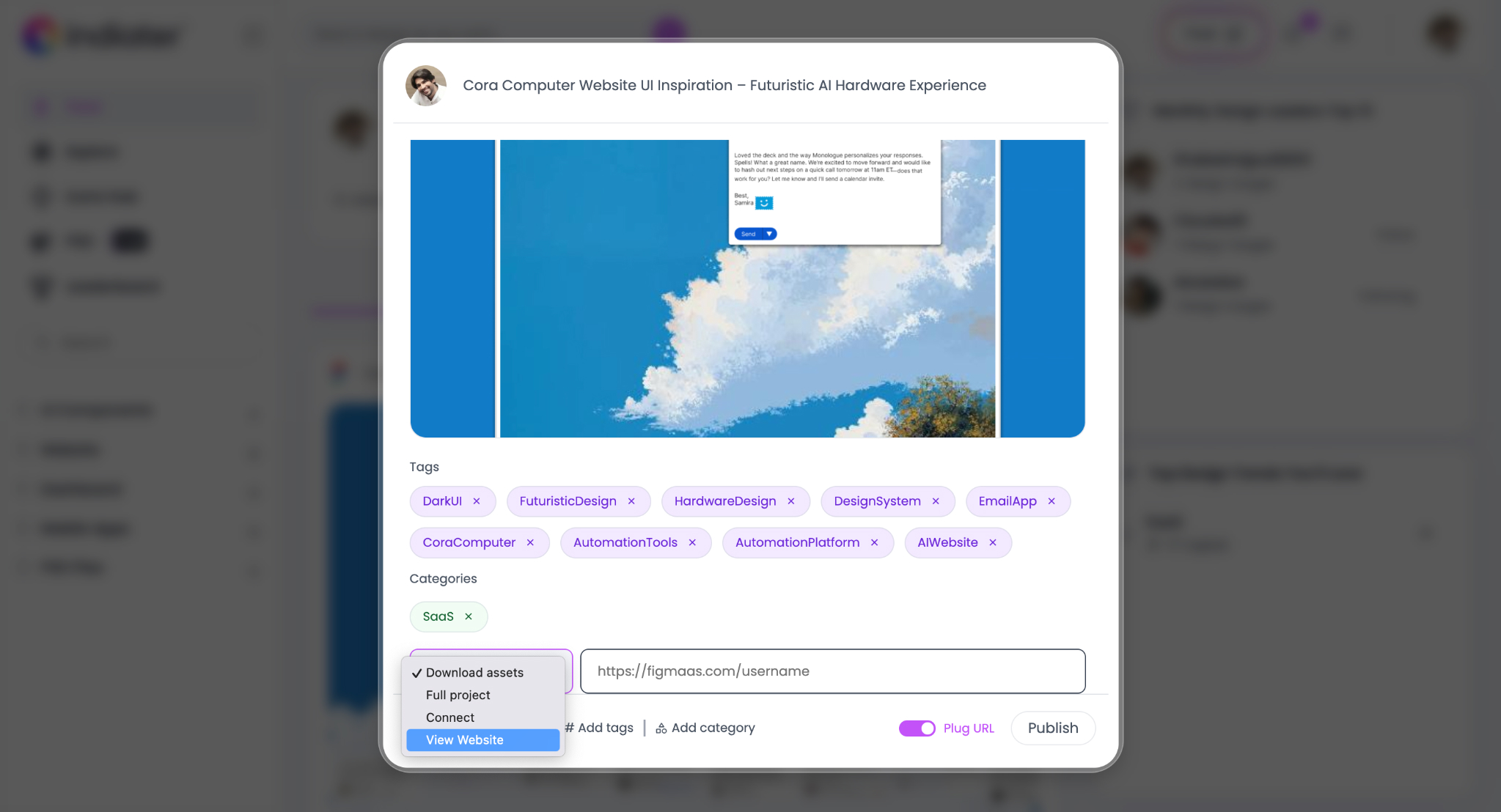
Step visualization
Step 09

Publish Your Design

Once everything is filled out:

  • Click the Publish button.
  • Your design will instantly appear on the Indiater feed, ready for the community to discover and copy!
Step visualization
Creator Benefits

Why designers upload on Indiater.

Indiater helps designers showcase their creativity and connect with modern product teams globally.

Build your portfolio and inspire others.

Share design inspiration
Build your design portfolio
Reach the UI/UX community
Showcase premium UI work
Gain visibility for projects
Grow your personal brand
Guidelines

Best Practices for Better Posts

Well-presented design posts receive more engagement and visibility on Indiater.

Clean Previews

Use high-quality preview images to showcase your unique layouts.

Clear Descriptions

Write short and clear descriptions with relevant tags.

Responsive UI

Upload high-quality UI designs and share responsive layouts.

Modern Styling

Use modern typography, spacing, and keep presentations polished.

Frequently asked questions

Everything you need to know about uploading your designs.

Yes. You can paste copied Figma frames directly into the upload window on Indiater.

You can upload SVG files, high-quality images (PNG/JPG), and pasted design frames directly from your clipboard.

Yes. Enable the "Plug URL" option during the upload process and add your live website link to let users experience the real product.

Absolutely. Indiater supports mobile app screens and responsive layouts alongside desktop designs.

Yes. Designers use Indiater to showcase premium projects, build visibility within the UI/UX community, and grow their personal design brand.

Ready to share your creativity?

Join thousands of designers uploading premium UI layouts. Build your portfolio and inspire the global design community.

Global Recognition
Portfolio Visibility
Community Appreciation
Design Inspiration